
A page break in an HTML-to-PDF conversion is an instruction that forces content onto a new printed page instead of letting it flow continuously. When a browser renders HTML on screen, there are no pages content scrolls. The moment that HTML is converted to PDF, it has to be sliced into fixed pages, and a page break is how you control where those slices land. Without explicit breaks, the converter decides for you, and it tends to cut tables, headings, and invoices in awkward places.
The mechanism is almost entirely CSS, not HTML markup. Page breaks live in the CSS fragmentation module — the same set of properties the browser uses for physical printing. That’s the core idea most people miss when they search this: you don’t add a special “PDF tag,” you write print-context CSS, and the converter honors it because it renders the page the same way a printer would.
How Page Breaks Actually Work in HTML to PDF
Three CSS properties do the real work, and understanding what each controls prevents hours of trial and error. break-before forces a break before an element, break-after forces one after it, and break-inside tells the renderer whether an element may be split across two pages. The older page-break-before, page-break-after, and page-break-inside are the legacy aliases; most engines still accept them, which is why you’ll see both in the wild.
The non-obvious part — and the thing the Stack Overflow and forum threads ranking for this topic circle around without ever stating plainly — is that breaks behave differently depending on the conversion engine. A break is a request, not a guarantee. Chromium-based converters (Puppeteer, Playwright, headless Chrome) implement the modern spec well. Older WebKit-based tools like wkhtmltopdf are pickier: they often need the element to be a block, sometimes need display:block forced, and historically ignored break-inside:avoid on table rows. Server-side libraries each have their own quirks. So “my page break isn’t working” is almost always an engine-compatibility problem, not a CSS syntax error.
When You Actually Need to Control Page Breaks
Manual page-break control matters most when a document is generated programmatically and a human never sees it before it’s sent. That’s exactly when bad automatic breaks do damage.
- Invoices and receipts — keeping the totals block from splitting across two pages, and starting each invoice in a batch on a fresh page.
- Reports and statements — forcing each chapter or account section to begin on its own page.
- Certificates and tickets — one record per page, never two bleeding together.
- Data tables — preventing a row from being sliced in half and repeating the header on each page.
A concrete failure mode shows why this is worth the effort: a billing system loops over orders and renders them into one long HTML string. With no breaks, order #18 ends halfway down a page and order #19 starts right beneath it — unreadable as separate documents. Adding break-before:page to each order’s container fixes the entire batch in one line.
The Types of Page-Break Control (and Their Values)
“Add a page break” splits into three distinct intentions: force a break, prevent one, or keep related content together. Knowing which property and value maps to which intention is the reference developers actually need.
| Goal | Property and value | Typical target |
|---|---|---|
| Start element on a new page | break-before: page |
Each chapter, invoice, or section |
| Break after an element | break-after: page |
A cover page or summary block |
| Never split an element | break-inside: avoid |
Tables, cards, image+caption pairs |
| Avoid orphaned headings | break-after: avoid on headings |
Keeping a heading with its first paragraph |
Two refinements competitors rarely mention. The orphans and widows properties control how many lines of a paragraph may be stranded at the bottom or top of a page — invaluable for clean reports. And for repeating table headers across page breaks, the fix isn’t a break property at all; it’s using proper <thead> markup, which print engines repeat automatically. People reach for break properties when the real answer is semantic table structure.
CSS Breaks vs Manual Break Elements vs Converter Settings
There’s more than one layer where a break can be imposed, and mixing them up causes conflicts. CSS fragmentation is the portable, recommended approach. A “manual” break element — a div styled with break-before:page — is just CSS wearing a markup costume. And some converters expose their own page-size and margin settings that override or interact with your CSS.
| Approach | How it’s applied | Best when |
|---|---|---|
| CSS fragmentation | Stylesheet rules on elements | You control the HTML/CSS source |
| Break element div | An empty styled element in the markup | Templating systems where CSS is awkward to target |
| Converter options | Library/API settings (page size, margins) | Fixing page geometry, not content flow |
The practical lesson: define page geometry (size, margins) in @page CSS or converter settings, and define content flow (where breaks fall) in fragmentation properties on your elements. When those two layers fight — a margin set in the converter and a conflicting one in CSS — you get the mysterious blank pages that fill the support forums.
Applied Workflows: Adding Page Breaks That Actually Hold
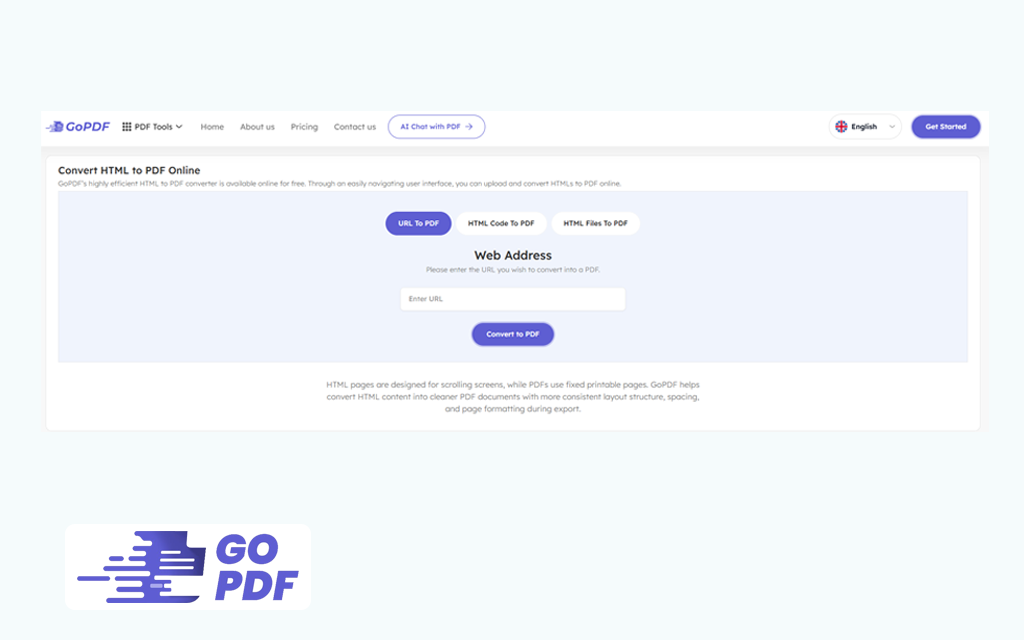
The reliable approach is the same across stacks: write the break rules in print CSS, target real container elements, then test against your specific converter. Where you don’t control the rendering engine, a browser-based converter like GoPDF can apply the same CSS and handle the conversion without setting up a headless browser yourself.
Force a break before each section. Wrap each logical unit — invoice, chapter, record — in a container and apply break-before: page to every container except the first. In a Chromium-based pipeline this works out of the box; the first container naturally starts on page one, and each subsequent one opens a fresh page.
Keep a block from splitting. Put break-inside: avoid on the element that must stay whole — a totals table, a signature block, a product card. Pair it with break-before: auto so the engine pushes the whole block to the next page only if it won’t fit on the current one. This is the single most useful rule for invoices.
When you don’t own the engine. If the HTML is generated by a system whose PDF converter you can’t configure, route the HTML through a conversion tool such as GoPDF, keep your break rules in a linked print stylesheet, and verify the output. A real sequence: generate the statement HTML, attach a print stylesheet that sets @page margins plus break-before:page on each account section, convert with a tool like GoPDF, then open the result and confirm no section splits.
Always test in the target engine. The cardinal rule, because a layout that breaks perfectly in Chrome’s print preview can fall apart in an older converter. Render a representative document — ideally one with a long table and an edge-case short final page — before trusting the rules in production.
Frequently Asked Questions
How do I add a page break to a PDF generated from HTML?
Apply the CSS property break-before: page (or the legacy page-break-before: always) to the element that should start a new page. The HTML to PDF converter reads this print-context CSS and forces a new page there.
Why is my page break not working in HTML to PDF?
Almost always an engine issue rather than bad CSS. Older converters like wkhtmltopdf need the targeted element to be a block and may ignore breaks on inline elements or table rows. Confirm the element is display:block and test in your actual converter.
What’s the difference between break-before, break-after, and break-inside?
break-before forces a new page before an element, break-after forces one after it, and break-inside: avoid stops an element from being split across two pages.
How do I stop a table from splitting across pages?
Apply break-inside: avoid to the table or its rows, and use proper <thead> markup so the header repeats on each page. For very long tables, allow row-level breaks but keep each row intact.
What is the difference between the old page-break and the new break properties?
page-break-before/after/inside are the legacy CSS 2.1 properties; break-before/after/inside are their modern CSS Fragmentation replacements. Most engines accept both, but the newer ones are the standard going forward.
Can I add page breaks without editing the HTML?
Yes, by attaching a separate print stylesheet that targets existing elements, or by using a PDF editor such as GoPDF that lets you apply the break CSS during conversion rather than altering the source markup.
How do I avoid a page break in a specific spot?
Use break-inside: avoid on the element you want kept together, and break-after: avoid on a heading so it isn’t stranded at the bottom of a page away from its content.



