
PDF metadata is the descriptive information stored inside a PDF about the document itself separate from the visible content on the page. It records things like the title, author, subject, keywords, the application that created the file, and the dates it was created and last modified. None of it appears when you read the document, yet it travels with the file everywhere it goes.
The reason this matters more than it sounds: metadata is written automatically, usually without the author’s knowledge. Export a contract from Word and the file quietly carries your name, your company’s software license, and a timestamp. That invisible layer is useful for organizing and searching documents — and a genuine privacy liability when a file leaves your organization with author names or revision history still attached.
How PDF Metadata Is Actually Stored
A PDF holds metadata in two distinct places, and most guides treat them as one thing — which is exactly why people “remove” metadata and find it’s still there. The first is the Document Information Dictionary (the legacy “Doc Info”), a simple set of key-value pairs for Title, Author, Subject, Keywords, Creator, Producer, and dates. The second is the XMP packet (Extensible Metadata Platform), an XML-based block that newer software writes and that can hold far richer data, including copyright, custom fields, and history.
The catch is that these two stores can disagree. A tool that edits only the Doc Info dictionary leaves the XMP packet untouched, so the old author name reappears when a different reader prefers the XMP source. There’s also a third, sneakier layer: metadata attached to individual objects inside the file — embedded images carrying their own EXIF data, or annotation authorship. A thorough audit checks all three. This is the single biggest gap in the pages currently ranking, which tend to stop at the Doc Info fields.
Why PDF Metadata Matters in the Real World
Metadata is rarely something people think about until it causes a problem or solves one. Both happen in predictable contexts.
- Legal discovery and leaks — a document released publicly with its author, internal filename, or edit history intact has exposed sensitive information more than once in high-profile cases.
- Accessibility and compliance — the document Title field is what a screen reader announces and what accessibility standards like PDF/UA require to be set correctly, not left as “Microsoft Word – Untitled1.docx.”
- Search and document management — enterprise systems index metadata to file and retrieve thousands of PDFs, so accurate Title, Subject, and Keyword fields make documents findable.
A concrete example that surprises people: the title shown in a browser tab when you open a PDF online usually comes from the Title metadata field, not the filename or the heading on page one. A whitepaper titled “Q3 Strategy” can display as “untitled” in the tab and in Google’s results purely because nobody set that field.
The Types of Data Inside PDF Metadata
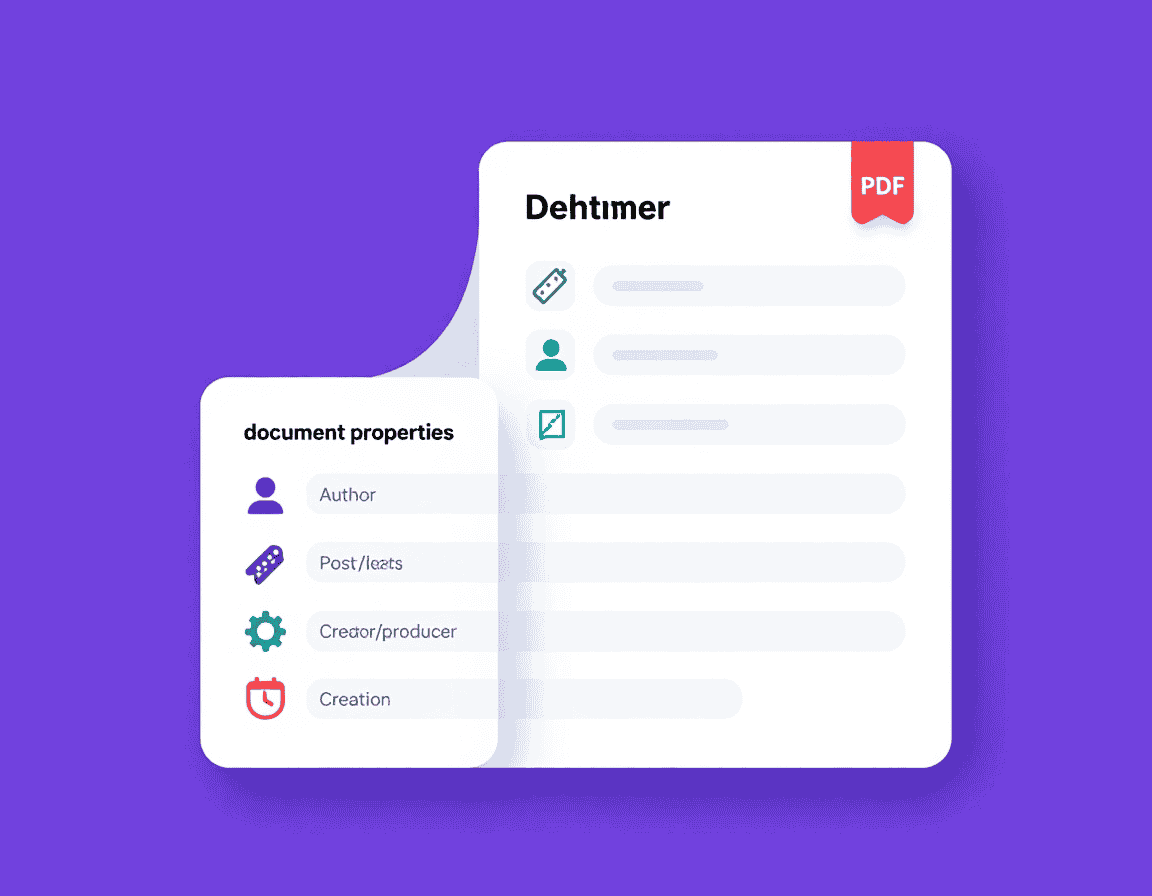
“Metadata” is a bucket of several different fields, and knowing which is which tells you what each one leaks and what each one controls.
| Field | What it holds | Why it matters |
|---|---|---|
| Title | The document’s name | Shown in browser tabs, search results, and by screen readers |
| Author | Person or organization | Common privacy leak; identifies who made the file |
| Subject / Keywords | Topic and search terms | Drives document management and internal search |
| Creator | Source application (e.g., Word) | Reveals your software and workflow |
| Producer | The library that wrote the PDF | Reveals the conversion tool used |
| Created / Modified dates | Timestamps | Can contradict a claimed timeline in disputes |
The pair people overlook is Creator versus Producer. Creator is the program you authored in; Producer is the engine that generated the PDF. Together they often expose an entire toolchain — useful for debugging a rendering bug, awkward when a “confidential” document broadcasts exactly how it was built.
Viewing vs Editing vs Removing Metadata
These three tasks sound similar but carry very different stakes, and conflating them leads to mistakes like editing a field when you meant to strip it entirely.
| Action | What it does | When to use it |
|---|---|---|
| View | Inspects what’s stored, including hidden fields | Auditing a file before you share or publish it |
| Edit | Changes specific fields to correct values | Setting a proper Title for accessibility |
| Remove / strip | Clears fields to protect privacy | Before releasing a document outside the organization |
The decision rule: edit when you want the right information present (a correct Title), strip when you want no information present (no author, no software trail). Editing a sensitive field to “Anonymous” is weaker than removing it, because a half-filled field can still hint at structure. For genuine sanitization, clearing both the Doc Info and XMP stores is the only reliable move.
Applied Workflows: Viewing, Editing, and Cleaning Metadata
In practice, three jobs cover almost every need: inspect what’s there, fix the fields that matter, and strip everything before a file goes public. Each runs in the browser through a tool like GoPDF, or via command-line utilities if you prefer automation.
Auditing a file before you share it. Open the PDF in a metadata viewer and read every field, not just Title and Author. A browser tool such as GoPDF surfaces the stored properties in seconds; for the truly thorough check, the command-line ExifTool reveals Doc Info, XMP, and embedded-image metadata in one pass. Make this a habit for anything leaving the building — it takes ten seconds and prevents the leaks that make headlines.
Editing fields for accessibility and findability. Set a real, human-readable Title (this is the field screen readers announce and the one that shows in search results), add a Subject and Keywords if the file is being archived or indexed, and correct the Author to your organization rather than an individual. A practical sequence: open the report in a tool like GoPDF, replace “Microsoft Word – draft3.docx” with “2026 Annual Report,” save, and the browser tab and search snippet immediately read correctly.
Stripping metadata before publishing. When privacy is the goal, remove rather than rewrite. The reliable approach clears both metadata stores at once — a real example is sanitizing a legal filing: load it into a tool like GoPDF, remove all document properties, then re-open the cleaned file in a viewer to confirm the Author and history fields are genuinely empty. That verification step is the one most people skip, and it’s the one that catches metadata that lingered in the XMP packet after a partial wipe. For highly sensitive documents, weigh that browser tools upload the file to a server, and prefer an offline utility when confidentiality is paramount.
Frequently Asked Questions
What is PDF metadata?
PDF metadata is descriptive information stored inside a PDF about the document — such as title, author, subject, keywords, creation software, and dates separate from the visible page content. It travels with the file but doesn’t appear when you read it.
How do I view the metadata of a PDF?
Open the file in a metadata viewer or your PDF reader’s “document properties” panel. Browser tools like GoPDF display the stored fields instantly, and the command-line ExifTool reveals deeper hidden data including XMP and embedded-image metadata.
How do I edit PDF metadata?
Open the PDF in a metadata editor such as GoPDF or Acrobat’s document properties, change the fields you need — most often the Title — and save. Setting an accurate Title improves both accessibility and how the file appears in search results.
How do I remove metadata from a PDF?
Use a tool that clears the document properties, then verify the result. Because PDFs store metadata in two places (Doc Info and XMP), confirm both are empty afterward, since some tools wipe only one.
Why does removed metadata sometimes come back?
Because the file has two metadata stores. If a tool edits only the legacy Document Information dictionary and leaves the XMP packet intact, a reader that prefers XMP will still show the old values. Clearing both stores prevents this.
What’s the difference between the Creator and Producer fields?
Creator is the application you authored the document in (for example, Word), while Producer is the library or engine that generated the actual PDF. Together they can reveal your full conversion toolchain.
Can PDF metadata be a privacy risk?
Yes. Author names, internal filenames, software details, and timestamps are written automatically and have exposed sensitive information when documents were shared publicly without being sanitized first.



