
A signature block is the designated area on a PDF where a signer enters their signature and often their printed name, title, date, and initials. Adding one means placing an interactive signature field on the page, not drawing your own signature. That distinction is the source of most confusion: when you add a signature block, you’re preparing a document for someone else (or yourself, later) to sign, not signing it yourself.
The key word is interactive. A signature block is a form field with a defined type and recipient, so when the signer opens the file, the area is clickable and knows what to collect. A typed line that reads “Sign here: ___________” is just text — it looks the part but does nothing. A real signature block captures input, can be made required, and in the digital-signature case, can bind a cryptographic certificate to the result.
How a Signature Block Actually Works
Under the hood, a signature block is a specific kind of PDF form field — a signature field — embedded in the document’s interactive layer. It carries properties the page text never could: who is assigned to sign it, whether it’s mandatory, and what kind of signature it accepts. This is why a properly built block can enforce a signing order across multiple parties, while a drawn box cannot.
There’s a fork here that trips people up, and the top results blur it. A signature block can collect an electronic signature (a typed, drawn, or uploaded image of a signature, legally valid under the U.S. ESIGN Act and the EU’s eIDAS for most business documents) or a digital signature (an electronic signature backed by a certificate that cryptographically seals the document and detects any change after signing). Same block on the page, very different assurance behind it. A vendor agreement is fine with the former; a regulated filing usually demands the latter. Knowing which you need before you build the block saves a complete redo.
When You Actually Need a Signature Block
You add a signature block whenever a document has to come back signed and you want the signing to be unambiguous. The real-world trigger is almost always that you’re the sender, not the signer.
- Contracts and agreements sent for signature — a vendor contract where each party signs a clearly assigned block, in order.
- HR and onboarding forms — offer letters and policy acknowledgments where every new hire signs the same prepared field.
- Approval and authorization forms — expense approvals or sign-offs needing a name, title, and date together.
- Reusable templates — an NDA you send dozens of times, built once with the blocks in place so you never reposition them again.
The insight competitors miss: the block exists to remove ambiguity about who signs where. On a two-party contract, two assigned blocks prevent the classic mess of both people signing the same line — and a required field stops a document coming back missing the date. The block is a guardrail, not decoration.
Signature Block vs Signature Line vs Just Signing
Three things get called “adding a signature” and they solve different problems. Picking the wrong one is why people end up with a document that looks signable but isn’t.
| What you add | What it is | Use when |
|---|---|---|
| Signature block / field | An interactive field the signer fills | You’re sending a document for someone to sign |
| Signature line | A visual line and label, sometimes with a field | You want a clear “sign here” cue on the layout |
| Your own signature | A typed, drawn, or image signature placed now | You are the one signing, right now |
A simple test settles it: if the document needs to leave your hands and return completed, you want a signature block. If you’re finishing the document yourself, you just want to sign it. The Reddit threads ranking for this query are full of people who built a static “line” and then wondered why recipients couldn’t actually sign — that’s the gap this distinction closes.
Types of Signature Blocks and Their Fields
A signature block is rarely just a signature. In practice it’s a small cluster of related fields, and a complete block anticipates everything the signer must provide so nothing bounces back incomplete.
- Signature field — the core interactive area for the signature itself.
- Date field — often auto-populated at signing, critical for contracts.
- Printed name and title — text fields that identify who signed in what capacity.
- Initials — smaller fields for page-by-page acknowledgment on long agreements.
- Assigned recipient — metadata routing each block to a specific signer.
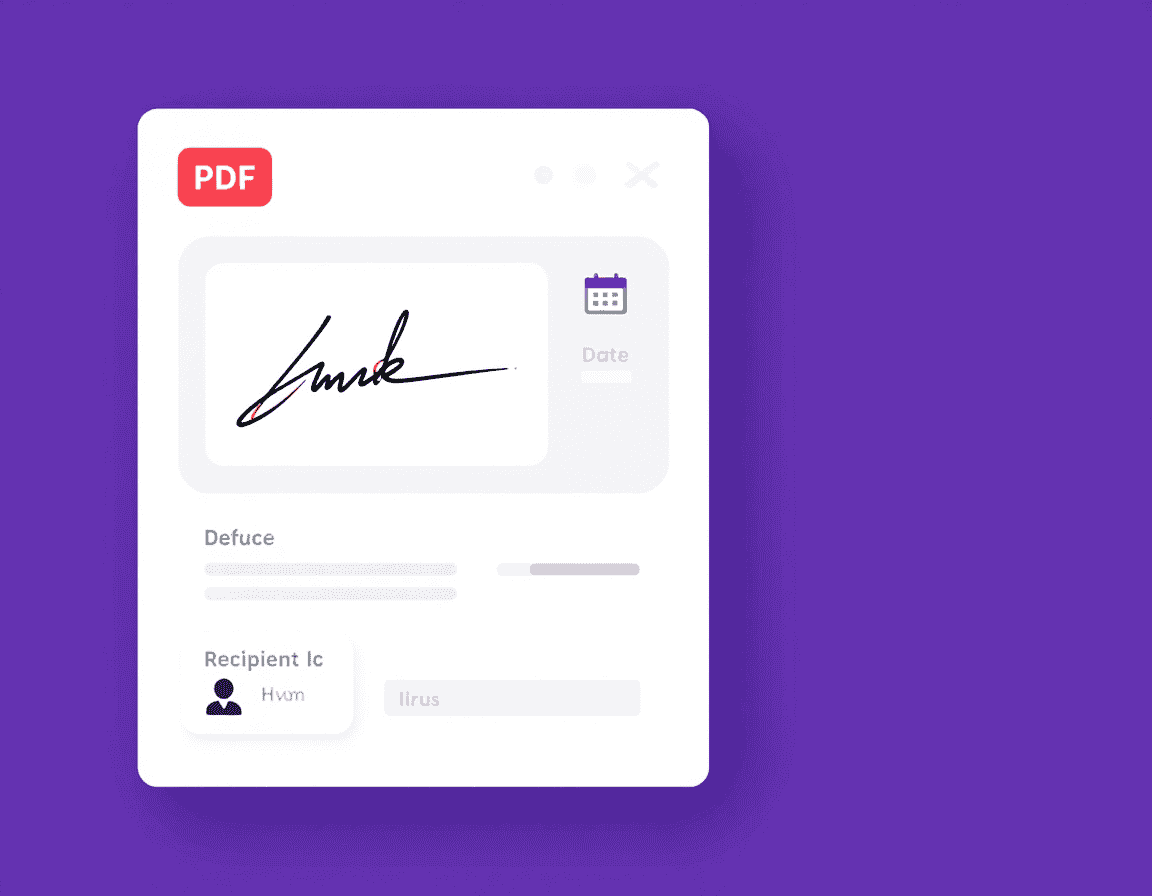
For multi-signer documents, the block type also encodes order. A loan packet might require the borrower’s block before the co-signer’s unlocks — something you set when building the fields, not after. Treating the block as a small system of fields, rather than one box, is what separates a template that works the first time from one that generates follow-up emails.
Applied Workflows: Building a Signature Block Step by Step
How you add a block depends on whether you’re working in desktop software, a browser tool, or preparing a reusable template. Each path below is the real sequence, and most can run in the browser through a tool like GoPDF without installing anything.
Adding a basic signature block in the browser. Upload the PDF sign tool such as GoPDF, drag a signature field onto the page where the block belongs, then add date and name fields beside it. Assign the field to a recipient if someone else is signing, mark it required, and send. For a single self-sign, you’d instead drop the field and sign it on the spot.
Setting up multiple signers in order. Place a separate block for each party, assign each to the right email, and set the signing sequence so party two only receives the document after party one finishes. A practical example: on a two-party NDA, build one block labeled “Disclosing Party” and one “Receiving Party,” each with signature, name, and date fields, so neither person can sign in the wrong place.
Turning it into a reusable template. If you send the same form repeatedly, build the blocks once and save the prepared file as a template. Next time you only swap the recipient — the fields stay put. Preparing a master copy in a tool like GoPDF and reusing it is what turns a 10-minute setup into a 30-second send.
Two cautions worth heeding: decide up front whether the document needs a certificate-backed digital signature, because retrofitting one onto an already-circulated file is painful; and for sensitive agreements, remember that browser-based signing uploads the document to a server, so confidential contracts may warrant a workflow you fully control.
Frequently Asked Questions
How do I add a signature block to a PDF?
Open the PDF in an e-signature tool such as Adobe Acrobat or GoPDF, choose to add a signature field, drag it onto the page where the signer should sign, and add name and date fields beside it. Assign it to a recipient and mark it required if someone else will sign.
What is the difference between a signature block and a signature line?
A signature block is an interactive field the recipient actually fills in. A signature line is usually just a visual line and label. If you need the document to come back genuinely signed, use a block, not a line.
Is an electronic signature in a PDF legally binding?
For most business documents, yes — electronic signatures are recognized under the U.S. ESIGN Act and the EU’s eIDAS regulation. Some regulated documents require a certificate-backed digital signature for stronger legal assurance.
What’s the difference between an electronic and a digital signature?
An electronic signature is a typed, drawn, or uploaded signature. A digital signature adds a cryptographic certificate that seals the document and detects any change made after signing, providing higher assurance.
Can I add a signature block for someone else to sign?
Yes. That’s the main purpose of a signature block — you assign the field to a recipient, mark it required, and send the document so they can sign in the designated spot.
How do I add a signature block for multiple signers?
Place a separate, labeled block for each party, assign each to its signer, and optionally set a signing order so the document routes to each person in sequence.
Can I reuse a signature block on documents I send often?
Yes. Build the blocks once and save the file as a template; for each new send you replace only the recipient while the fields stay in place.
Why can’t recipients sign the block I added?
You most likely added a static line or text instead of an interactive signature field. Only a true signature field is clickable and able to collect a signature.




I’ve been using a typed line that says “Sign here: ___” for years and thought that counted as a signature block. Every time I sent a vendor contract, clients emailed back asking how to sign a PDF. Now I finally get why — a static line isn’t a real PDF form field, it’s just decoration. The distinction between a signature block vs signature line is something I wish I’d understood way sooner. Really clear article!
You’re far from alone on this, Mark — it’s the single most common mix-up we see. A typed line looks the part but has no interactivity: it can’t collect a signature field input, can’t be marked required, and can’t enforce a signing order. Once you switch to a real interactive field in a tool like GoPDF or Adobe Acrobat, documents come back signed the first time. Give it a try and let us know how it goes!