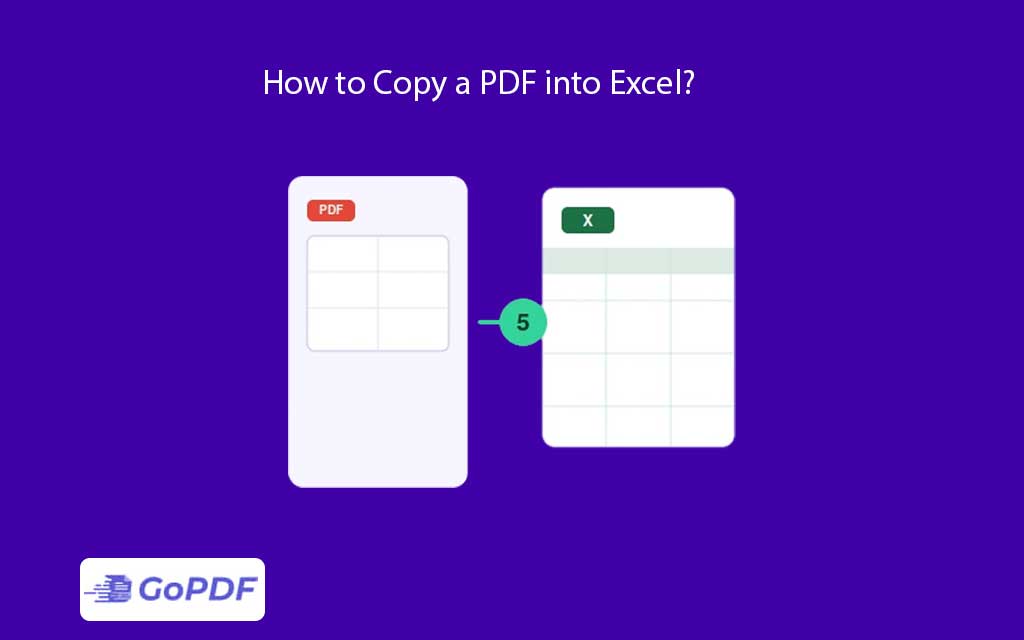
Copying a PDF into Excel means moving content from a fixed-layout document into a grid of rows and columns and the reason it so often goes wrong is that a PDF has no concept of a “”cell.”” It stores characters at x/y coordinates on a page. Excel has to guess where one column ends and the next begins, and when it guesses wrong, an entire table lands in a single cell.
First Decide: Embed the PDF, or Extract Its Data?
These are two completely different goals that share the word “”copy,”” and confusing them wastes the most time. Embedding drops the PDF into a worksheet as an object — an icon or image you double-click to open. The data stays locked inside; you cannot calculate on it. Extracting pulls the actual values into cells so you can sort, sum, and chart them. If you want to reference a document, embed it. If you want to use the numbers, extract them. Most people who type “”copy PDF into Excel”” want extraction and get embedding by mistake.
The 5 Methods, and When Each One Wins
- Direct copy-paste — fast for a clean, single-column list; collapses multi-column tables into one cell.
- Paste Special as text — sometimes preserves row breaks the plain paste loses, then split with Text-to-Columns.
- Power Query (Data > Get Data > From File > From PDF) — the most reliable for real tables; it reads the PDF’s table structure and maps it to columns, and it refreshes if the source updates.
- Convert PDF to Excel/CSV — a dedicated converter outputs a structured file you open directly.
- OCR extraction — the only method that works on scanned PDFs, because the others find no text at all.
The insight buried under most listicles: methods 1 and 2 fail on exactly the documents people most need to import — multi-column financial tables — while Power Query and conversion succeed because they parse structure rather than copying a text stream.
Why Your Columns End Up in One Cell
When you paste and a whole row lands in column A, Excel received the text as a single delimited string and found no delimiter it recognized. The fix is to give it one: Text-to-Columns lets you split on spaces or a fixed width. But if the PDF used inconsistent spacing between columns, fixed-width splitting misaligns every row — which is the moment to stop fighting paste and switch to Power Query, which reads column boundaries from the PDF’s layout instead of from whitespace.
The Scanned-PDF Trap
If copy-paste produces nothing and Power Query returns an empty table, the PDF is a scan — an image with no text layer. No paste method can extract text that doesn’t exist as text. Run OCR first to generate a text layer, then any extraction method becomes possible. This single check explains most “”why can’t I copy from this PDF”” failures.
Use Cases
- Bank or invoice tables into a budget — Power Query, so monthly statements refresh.
- A one-off list of names — direct paste is fine.
- A scanned legacy report — OCR, then convert.
- Referencing a contract beside your model — embed the PDF as an object.
Applied Workflows: Getting Clean Data Out
Workflow 1 — A digital PDF with proper tables
- Try Data > Get Data > From PDF (Power Query) first; preview the detected table and load it.
- If your Excel version lacks the PDF connector, convert the file to Excel externally. In a browser-based tool such as GoPDF, you would OCR PDF to a spreadsheet and copy text/paste directly in Excel.
- Verify column alignment on the first three rows before trusting the rest.
Workflow 2 — Paste went into one cell
- Select the column, use Data > Text to Columns, and split on the delimiter the PDF used.
- If spacing is inconsistent, abandon paste and use the Power Query or conversion route instead.
Workflow 3 — Scanned PDF
- Run OCR to create a text layer.
- Extract via conversion or Power Query.
- Spot-check digits — OCR mistakes (5 vs S, 0 vs O) corrupt totals silently.
FAQ
Why does my whole PDF row paste into one Excel cell?
Excel received the text without a delimiter it recognized. Use Text-to-Columns to split it, or use Power Query, which reads the table structure directly.
Why can’t I copy any text from my PDF into Excel?
It’s a scanned image with no text layer. Run OCR first, then extract.
Which method keeps tables aligned best?
Power Query (Get Data > From PDF) or a dedicated PDF-to-Excel conversion — both parse column structure instead of copying a flat text stream.