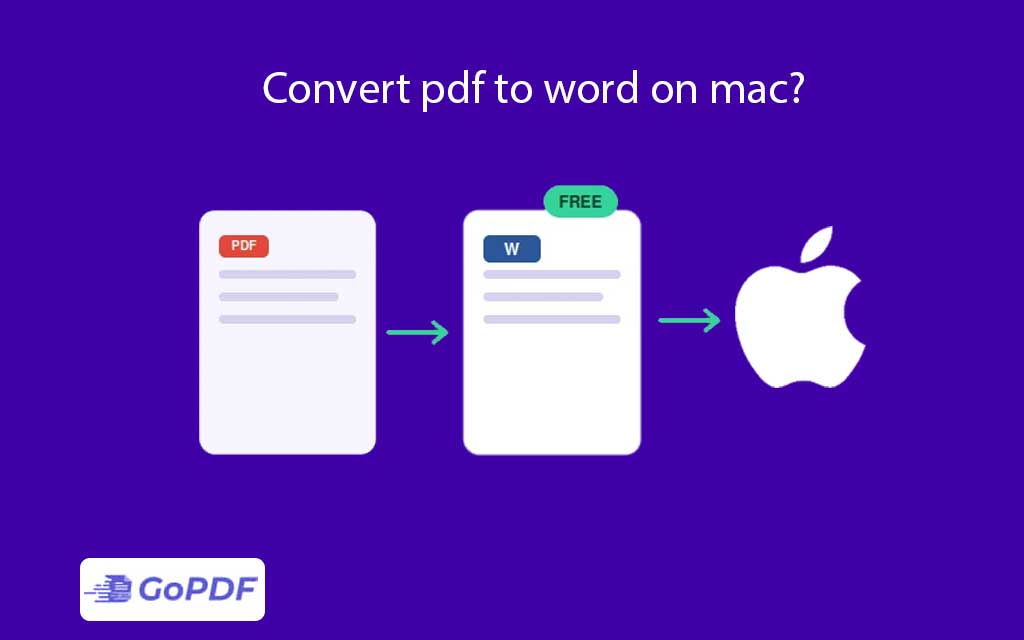
Converting a PDF to Word on a Mac means turning a fixed-layout document into an editable .docx file where you can change text, tables, and styles. The phrase that matters most in that sentence is “”editable”” — and on a Mac, the free tools people reach for first are exactly the ones most likely to damage the layout in the process.
Why “”Free on Mac”” Quietly Means “”Reformatted””
macOS ships with Preview and Pages, and both can open or export documents — so it feels like the conversion is built in. The catch competitors gloss over: Preview cannot export to .docx at all, and Pages opens a PDF by rebuilding it from scratch, re-flowing text into its own layout engine. The result is editable, but columns collapse, fonts substitute, and tables fragment. You haven’t converted the document; you’ve reconstructed an approximation of it.
The Real Variable: Is Your PDF Text or Image?
Conversion quality is decided before you click anything, by which of two kinds of PDF you have. A digital-native PDF (exported from Word, Google Docs, or a browser) carries a real text layer, and a good converter maps that text straight into Word with formatting largely intact. A scanned PDF is an image; there is no text to map. Converting it without OCR gives you a Word file containing a picture of text — uneditable, unsearchable, useless for the thing you wanted. Knowing which type you have tells you whether you need OCR PDF before you start.
What “”Losing Formatting”” Actually Refers To
Formatting loss is not one problem but several, and they fail independently:
- Tables — the most fragile element; multi-column tables often break into loose text or merged cells.
- Columns — newspaper-style layouts re-flow into a single column.
- Fonts — substituted when the original isn’t installed, shifting line breaks.
- Headers, footers, and footnotes — frequently dropped into the body as plain text.
A converter that “”preserves formatting”” is really one that protects these four things. Judge any tool by what it does to a table, not to a paragraph.
Use Cases and the Right Approach for Each
- Editing a contract or report you authored — digital PDF, expect near-perfect conversion.
- Reusing an old scanned form — OCR is mandatory; budget time to clean up recognition errors.
- Pulling a few paragraphs — often faster to copy the text directly than to convert the whole file.
- Heavy tables — consider converting the tabular parts to a spreadsheet instead, where tables are native.
Applied Workflows: Converting on a Mac, Step by Step
Workflow 1 — A digital PDF you need editable fast
- Confirm the PDF is text-based by selecting a sentence — if it highlights character by character, it’s digital.
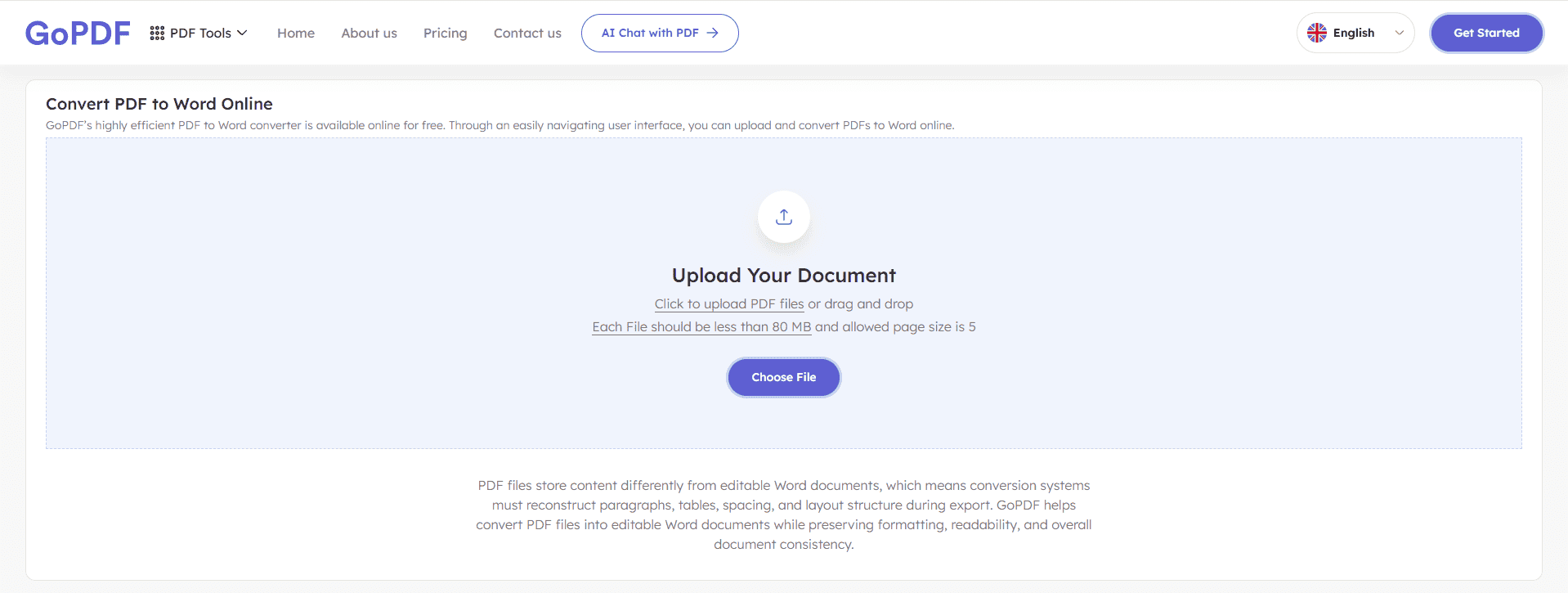
- Run it through a converter that outputs .docx. In a browser-based tool such as GoPDF, you would upload the PDF, choose Word as the output, and download the .docx useful on a Mac precisely because it sidesteps Pages’ rebuild behavior.
- Open in Word, then check tables and headers first — that’s where damage hides.
Workflow 2 — A scanned PDF
- Run OCR before converting so the image becomes real text.
- Convert the OCR’d file to Word.
- Proofread numbers and proper nouns — OCR is weakest exactly where accuracy matters.
Workflow 3 — Formatting-critical document
- Convert, then place the original PDF and the new .docx side by side.
- Fix tables and columns manually rather than trusting the auto-result.
- Keep the PDF as the reference of record.
FAQ
Can Preview convert a PDF to Word?
No. Preview can export to PDF or images but not to .docx. Use a dedicated converter for Word output.
Why does my converted file have a picture instead of editable text?
The source was a scanned (image) PDF and no OCR ran. Apply OCR first, then convert.
How do I keep tables from breaking?
Start from a digital PDF, use a converter that handles table structure, and expect to repair complex tables by hand against the original.