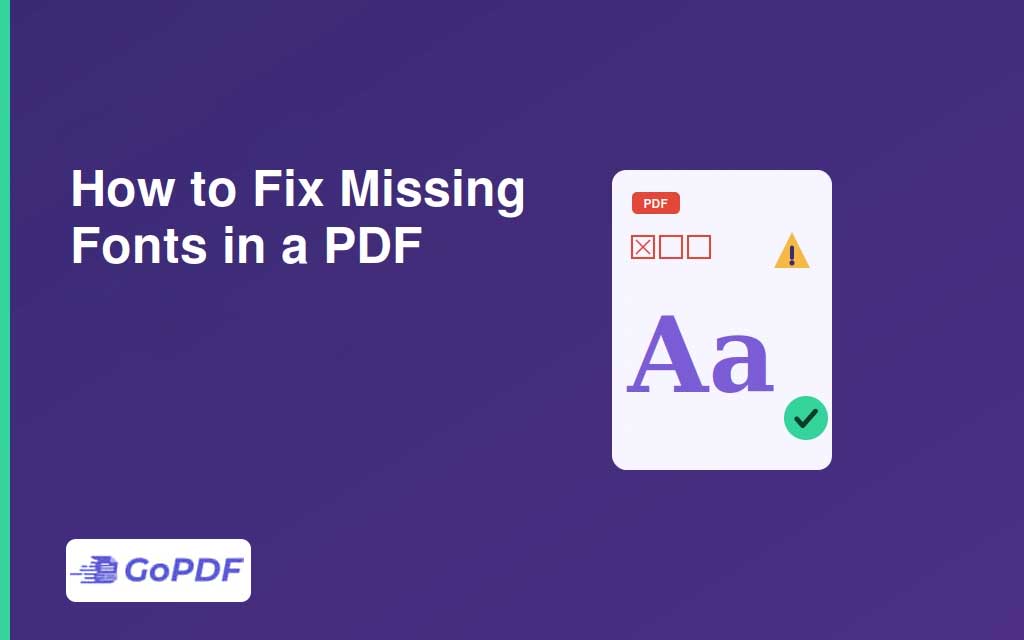
A missing font in a PDF is what you see when the file references a typeface that was never embedded and isn’t installed on the device opening it. The viewer substitutes a stand-in font to keep the document readable, but the substitution shifts spacing, breaks line endings, garbles special characters, and occasionally turns text into blank boxes or random glyphs. The text is still there — it is just being drawn with the wrong tool.
Why a PDF Has Missing Fonts at All
PDFs were designed to look identical everywhere, which they achieve by embedding the fonts inside the PDF. A missing font means that embedding didn’t happen — usually because the original author exported with “”embed fonts”” disabled, used a font whose license forbids embedding, or relied on a system font the export assumed every reader would have. Understanding this is what separates a real fix from a cosmetic one: the problem was created at export time, on someone else’s machine, and you are dealing with the symptom.
Substitution vs. Genuine Loss — Two Different Severities
Not all “”missing font”” warnings are equal. In the milder case, the glyph shapes still exist in the file (the font is subset-embedded or the substitute covers the characters), so the document is readable and merely looks slightly off. In the severe case, neither the font nor a usable substitute is available and characters render as boxes or vanish — the information itself is at risk. Diagnose which one you have before acting: a readable-but-ugly PDF needs a different fix than one showing empty rectangles.
The Fast Fixes, in Order of Effort
- Install the missing font on your device — if you know its name, installing it lets the viewer stop substituting. Fastest fix, but only helps you; anyone else opening the file hits the same problem.
- Re-embed fonts into the PDF — the durable fix. A PDF edit tool detects unembedded fonts and bakes them (or a close substitute) into the file so it renders correctly on every device.
- Flatten or convert problem text to outlines — turns text into vector shapes that need no font at all; perfect fidelity, but the text is no longer selectable or editable.
- Recreate from source — if you have the original, re-export with embedding enabled. The cleanest result when the source exists.
How to Identify the Missing Font
You cannot install or re-embed a font you can’t name. A PDF’s document properties list every font it references and flag which are embedded and which are not — that list is your shopping list. The overlooked detail: a font marked “”Type 3″” or showing a subset prefix (like ABCDEF+Helvetica) behaves differently from a fully missing font, and chasing the wrong one wastes time. Read the embed status, not just the font name.
Use Cases
- A client PDF renders with boxes on your screen — identify the font, then re-embed or outline so it’s portable.
- Your exported PDF looks wrong on others’ devices — re-export from source with embedding on.
- Print shop rejects your file for unembedded fonts — outline the text or embed everything before resubmitting.
- Archiving documents long-term — embed fonts now so the file survives future systems that lack them.
Applied Workflows: Fixing It Now
Workflow 1 — Quick local fix for your own viewing
- Open document properties and read the font list; note any marked “”not embedded.””
- Install those fonts on your device and reopen the file.
- Remember this only fixes it for you — do the next workflow if the file will be shared.
Workflow 2 — Permanent fix so the file works everywhere
- Identify the unembedded fonts from the properties panel.
- Re-embed them into the PDF. In a browser-based editor such as GoPDF, you would open the PDF and use the edit/optimize function to embed the fonts back into the file.
- Reopen on a device that lacks the fonts to confirm the fix held.
Workflow 3 — Print- or archive-grade fidelity
- Convert the affected text to outlines so rendering no longer depends on any font.
- Keep an editable copy first — outlining is one-way and removes selectable text.
FAQ
Why does my PDF show boxes instead of letters?
The referenced font isn’t embedded and no substitute covers those characters. Identify the font in document properties, then install or re-embed it.
If it looks fine on my computer, is it fixed?
Not necessarily — you may simply have the font installed. Re-embed the fonts so it renders correctly on devices that don’t.
What’s the most bulletproof fix?
Converting the text to outlines guarantees identical rendering everywhere, at the cost of making that text non-editable. Re-embedding is the best balance of fidelity and editability.