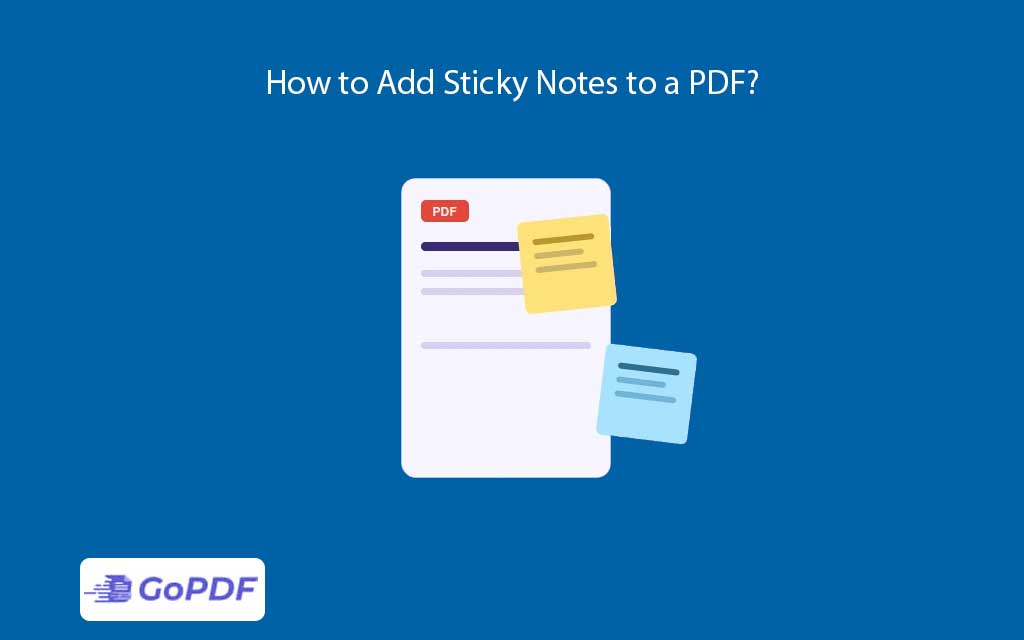
A sticky note in a PDF is an anchored comment a small marker pinned to a specific point on the page that expands into a text bubble when clicked. Unlike text written onto the page, a sticky note is a discrete, attributed object: it carries an author name, a timestamp, and a reply thread, which makes it the native unit of PDF collaboration rather than mere markup.
What Makes a Sticky Note Different From Other Markup
People reach for sticky notes when they actually need a different tool, and vice versa. The distinction worth internalizing: a sticky note is detached from the content — it points at a location without covering it — whereas a text box sits on the page and obscures whatever is beneath. That detachment is the feature. It lets a reviewer leave dozens of remarks on a dense page without hiding a single word, and it lets the author filter, reply to, and resolve each one individually.
Why Cross-Platform Behavior Trips People Up
The same PDF opened on Windows and on Mac can show sticky notes differently, and this is the practical pain competitors ignore. macOS Preview renders and lets you add notes, but its comment model is lighter than a full editor’s; a note’s collapsed icon, color, and reply thread may look or behave differently across readers. The safe rule: sticky notes follow the PDF annotation standard, so any compliant reader will show them, but only fuller editors expose replies, statuses, and author management. Author your notes expecting the recipient’s reader to be more basic than yours.
Use Cases for Anchored Notes
- Design and document review — pin feedback to the exact element without painting over the artwork.
- Team collaboration — threaded replies turn a PDF into a lightweight discussion, with each note resolvable.
- Self-reference — flag spots to revisit later without altering the document.
Sticky Notes vs. Highlights vs. Text Boxes
Choose by what the remark refers to. A highlight says “”this text matters.”” A text box says “”read this where it sits.”” A sticky note says “”I have a comment about this point”” — and keeps that comment collapsible so the page stays clean. For documents with many reviewers, sticky notes scale where text boxes become clutter.
Applied Workflows: Adding Sticky Notes on Each Platform
Workflow 1 — On Mac
- Open the PDF and use the markup tools to drop a note at the relevant point; type the comment in the bubble.
- Save as PDF (not export-to-image) so the note remains a live, clickable object for the recipient.
Workflow 2 — On Windows
- Open in a PDF reader that supports comments, select the sticky-note/comment tool, and click the target location.
- Type the note; set a color if you use color-coding across reviewers.
Workflow 3 — Platform-neutral, in the browser
- To avoid Windows/Mac discrepancies entirely, use a browser-based editor so every collaborator sees the same rendering. In GoPDF, for example, you would open the file, choose the comment/sticky-note tool, click to place the note, and type — the result renders identically regardless of the reviewer’s OS.
- Share the link or file; collaborators reply in-thread, and you resolve notes as they’re addressed.
FAQ
Will sticky notes I add on Mac show up on Windows?
Yes — they follow the PDF annotation standard, so any compliant reader displays them. Reply threads and note statuses, however, may only appear in fuller editors.
What’s the difference between a sticky note and a text box?
A sticky note is anchored and collapsible — it points at a spot without covering it. A text box sits on the page and hides the content beneath. Use notes for review, text boxes for content you want always visible.
Do sticky notes print?
By default they print as small icons, not expanded text. To include the full comments on paper, choose the “”document and markups”” print option or export a summary of comments.