
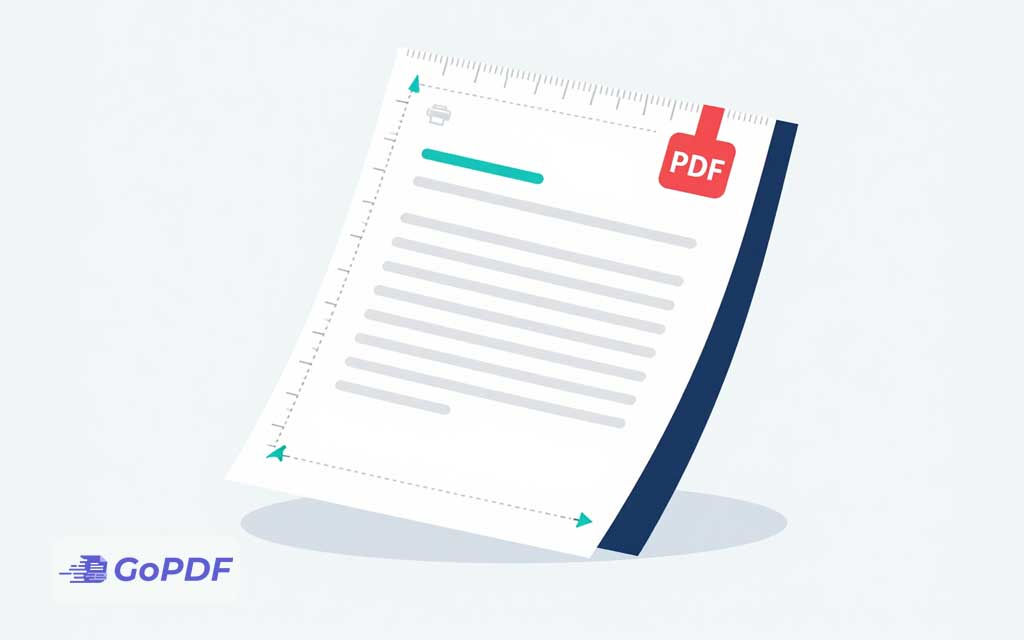
“Change the margins” means something specific in a word processor: adjust a setting and the text reflows inside the new boundaries. A PDF has no such setting. It doesn’t store margins as an editable property by the time content is a PDF, the text and images are fixed at exact coordinates on a page of a fixed size. So when someone asks how to change PDF margins, they’re usually after one of three different outcomes, and the right method depends on which.
Sorting that out first is what separates a clean result from a frustrating afternoon of trial and error.
What “margin” really means in a PDF
A PDF page is defined by boxes — chiefly the MediaBox (the full physical page) and the CropBox (the visible region). White space around your content isn’t a margin in the editable sense; it’s just the gap between where the content sits and the edge of these boxes. You can’t tell the text to “move in 1 inch and rewrap.” You can only change the boxes, move the content, or change how the page is placed on paper at print time.
Once you frame it that way, the three real tasks become obvious.
The three things people actually want
| Goal | The right operation | Effect on content |
|---|---|---|
| Trim excess white space around content | Crop the pdf (shrink the CropBox) | Content untouched; visible page gets smaller |
| Add breathing room / binding space | Resize the page box larger, or add white space | Content stays put; page grows around it |
| Fix margins for printing | Scale to fit / set printer margins | Content shrinks slightly to clear the printable area |
Trimming margins that are too large (cropping)
If a PDF has huge empty borders — common with documents exported at the wrong page size, or scans with dark scanner edges — cropping is the tool. Cropping changes the CropBox so the reader displays a tighter region; the underlying content doesn’t move or resize.
- Open the crop tool and draw or enter the region you want to keep.
- Apply the same crop to all pages if the document is consistent — doing it page by page is the slow path and risks uneven results.
- Check pages with footers or page numbers near the edge; an over-aggressive crop quietly clips them.
The detail worth knowing: cropping is usually non-destructive. Many tools only hide the cropped area by shrinking the CropBox — the content is still there, just outside the visible box. That’s good for reversibility but a security blind spot if you crop to hide sensitive information. To truly remove content, you need to flatten or sanitize, not just crop.
Cropping hides; it doesn’t always delete. If you crop out a confidential header to share a document, the original pixels may still be recoverable. Flatten or redact for genuine removal.
Adding margins or binding space
The reverse problem — content runs too close to the edge — needs more page, not less. Here you enlarge the page box and let the existing content sit within the new, larger area, or add a white border. This is exactly what you do when preparing a document for binding (you need a wider inside margin so text isn’t swallowed by the spine) or when content would otherwise be clipped by a printer’s no-print zone.
A practical approach many people miss: instead of fighting box geometry, print or export the PDF “scaled to fit” onto a slightly larger page size. The content shrinks a hair and gains uniform white space on all sides — effectively new margins — without touching the internal layout.
The printing case — where margins usually go wrong
Most “my PDF margins are wrong” complaints surface at the printer. Every physical printer has an unprintable border — a few millimeters at each edge it physically cannot reach. If your PDF content extends into that zone, it gets clipped on paper even though it looked fine on screen.
The fixes, in order of preference:
- Print at “Fit” or “Shrink oversized pages.” The print dialog scales content down slightly so everything clears the printable area. This solves the majority of cases instantly and is fully reversible — you’re not editing the file at all.
- Set custom scale (e.g., 95%). Pulls content inward uniformly when “Fit” overshoots.
- Match the page size to the paper. Printing a Letter-sized PDF on A4 (or vice versa) creates uneven margins and edge clipping. Confirm the PDF page size matches the tray.
Reaching for the print dialog first is the underrated move: it fixes most margin-for-printing problems without permanently altering the document.
Crop vs. resize vs. scale — choosing correctly
The decision is quick once you name the goal:
- Too much white space? Crop.
- Not enough white space / need binding room? Enlarge the page or scale onto a bigger sheet.
- Content clipped only when printing? Scale to fit in the print dialog — don’t edit the file.
Common mistakes and misconceptions
- Expecting text to reflow. It won’t. Changing the page box moves boundaries, not the text inside them.
- Cropping to redact. Hidden is not deleted. Use proper redaction for sensitive content.
- Editing the file to fix a print clip. The print dialog’s “Fit” option usually solves it without any permanent change.
- Applying a crop to one page and assuming it covers all. Verify the operation spans every page, especially in mixed-orientation documents.
- Mismatched page and paper sizes. Letter vs. A4 differences alone produce uneven margins; align them before blaming the file.
Frequently asked questions
Do PDFs have margins I can just edit?
No. PDFs store fixed page boxes, not editable margins. You crop, resize the page, or scale at print time depending on the goal.
Will cropping a PDF delete the content outside the crop?
Often not — many tools only shrink the visible box, leaving the content recoverable. To actually remove it, flatten or redact.
Why does my PDF get clipped only when I print it?
Your content extends into the printer’s unprintable border. Choose “Fit” or “Shrink oversized pages” in the print dialog, or set a custom scale like 95%.
How do I add a binding margin?
Enlarge the page on the binding side, or scale the content onto a slightly larger page so uniform white space appears, then add extra on the inside edge.
Can I change margins without editing software?
For printing, yes — the print dialog’s scaling options adjust effective margins on paper without altering the file. Permanently changing the page geometry needs a PDF editor.



