
Changing the font size in a PDF feels like it should be as simple as it is in a word processor — highlight, pick a bigger number, done. It rarely is, and understanding why saves a lot of wasted clicking. A PDF is a fixed-layout format: it was designed to look identical on every device, which means text is pinned to exact coordinates rather than flowing inside editable paragraphs. There’s no “increase font and let everything reflow” button the way there is in Word.
What you actually do depends on which text you’re trying to change body text baked into the document, text in a fillable form field, or text you’re adding yourself. Each is a different job.
Why PDF font sizing isn’t like Word
When a PDF is created, text is stored as glyphs placed at fixed positions, often with the font subset embedded so it renders the same everywhere. There are no paragraph objects that automatically rewrap. So if you enlarge a word in the middle of a justified paragraph, the surrounding text doesn’t politely shuffle to make room — it overlaps, or runs off the line, unless the editor recalculates the whole block.
This is the single most important thing to grasp: editing existing PDF text is really a small layout operation, not a typing operation. Good PDF editor handle the reflow within a text block for you; weaker ones leave you nudging characters by hand.
The three situations you might be in
| What you want to change | What’s really happening | How hard it is |
|---|---|---|
| Existing body text in the document | Editing embedded glyphs and reflowing a text block | Moderate — needs a PDF editor |
| Text inside a fillable form field | Changing the field’s font property, not the document | Easy — it’s a field setting |
| New text you’re adding | Setting the size before you place it | Easy — choose size as you type |
Changing existing body text
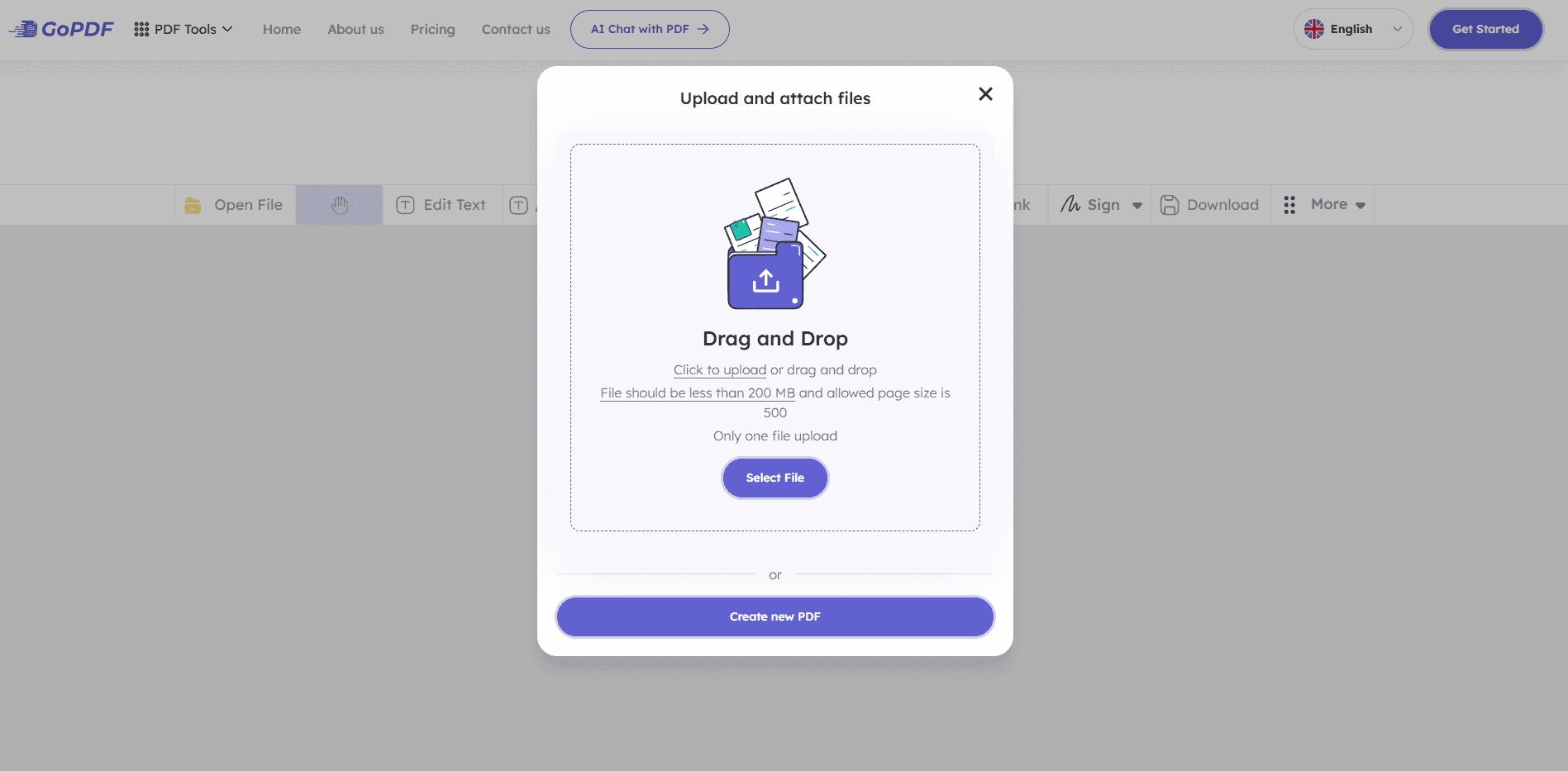
To resize text that’s already part of the document, you need a PDF editor with a genuine text-editing mode (not just an annotation layer). The general workflow:
- Open the file and switch to Edit mode so the editor parses the text into editable blocks.
- Select the specific text run you want to change. Selecting a whole line or block keeps spacing consistent.
- Set the new point size. Watch the surrounding text — a larger size may push lines and you may need to widen the text box or accept the reflow.
- If the original font isn’t installed or embedded, the editor may substitute a similar one. Check that letterforms still match the rest of the page.
The hidden gotcha: if the font isn’t embedded and you don’t have it, you can’t always preserve the exact look. Editors substitute the closest available face, which can subtly shift spacing. For documents where appearance is critical, going back to the source file and re-exporting is cleaner than editing the PDF.
Changing font size in a fillable form
This trips people up constantly, because the answer is the opposite of what you’d guess. In a form, the text you type into a field is governed by the field’s font-size property, not by editing the document text. Many forms ship with the field set to “Auto”, which shrinks your text to fit as you type — which is why your entries keep getting smaller in long fields.
To fix it, you change the field’s properties rather than the page:
- Open the form’s field/properties editor.
- Find the font size setting for the field (often defaulting to Auto).
- Set a fixed point size so every entry renders consistently.
- Apply to all matching fields if the form has many — doing them one at a time is the slow mistake here.
If your typed answers shrink the more you write, the field is set to Auto. Switch it to a fixed size and the shrinking stops.
A practical accessibility angle most guides miss
People often want “bigger font” not to edit the document but to read it more comfortably. If that’s the real goal, you may not need to alter the file at all. PDF readers let you zoom, and accessibility-tagged PDFs support a reflow view that re-wraps text to your screen and respects your chosen text size — no editing required. Reaching for a reflow or zoom setting is faster and safer than permanently changing the document, and it doesn’t risk breaking the layout for the next reader.
The catch: reflow only works well on properly tagged PDFs. A flat scanned document has no text structure to reflow, which is a useful diagnostic — if reflow does nothing, your “PDF” is really an image and needs OCR before any text operation will work.
Adding new text at the size you want
When you’re inserting text — filling a non-interactive form, adding a note, labeling a diagram — set the size before or right after placing it. Match the point size to nearby text so the addition doesn’t look pasted on. A common slip is adding 12 pt text onto a page whose body is 10 pt; the mismatch reads as an edit even when the content is correct.
Common mistakes
- Using the annotation tool and expecting it to edit the document. Comment/markup text floats on top; it doesn’t change the underlying page and can look out of place when printed.
- Fighting a form field by editing the page. If it’s a fillable field, change the field property, not the document text.
- Ignoring embedded fonts. Resizing text in a font you don’t have leads to substitution and spacing shifts.
- Resizing a scanned PDF directly. There’s no real text to resize until you run PDF OCR first.
- Permanently editing when you only wanted to read. Zoom or reflow view solves comfort without altering the file.
Frequently asked questions
Can I change font size in a PDF without special software?
For reading comfort, yes — any reader’s zoom or reflow view enlarges text on screen without editing. To permanently change the stored font size, you need a PDF editor with a text-editing mode.
Why does my text get smaller as I type in a form?
The field’s font size is set to Auto, which shrinks input to fit. Change the field to a fixed point size to stop it.
Why can’t I select the text to resize it?
The page is probably a scanned image, not real text. Run OCR to create a text layer first, then it becomes selectable and editable.
Will changing one word’s size break the paragraph?
It can, because PDFs don’t auto-reflow like Word. A capable editor reflows within the text block; otherwise you may need to adjust the text box or accept some manual spacing.
Is it better to edit the PDF or the original file?
If you still have the source document, change the size there and re-export — it’s cleaner and preserves fonts exactly. Edit the PDF directly only when the original isn’t available.



