
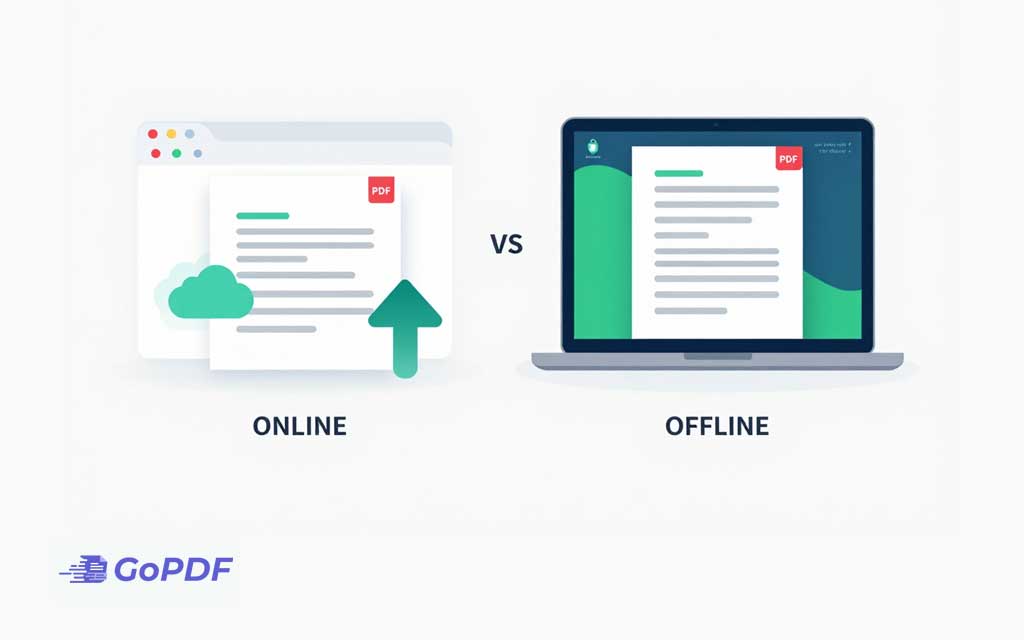
Online and offline PDF editing solve the same task in two fundamentally different places. An online editor runs in your web browser and processes your file on a remote server: you upload the PDF, make changes, and download the result. An offline editor is software installed on your device that opens and edits the file locally, so the document never leaves your computer. The split sounds simple, but it touches privacy, capability, cost, and reliability in ways that decide which one is right for a given document.
The honest answer to “which is better” is that neither wins outright — it depends on what’s in the file and what you’re trying to do. A throwaway flyer and a sealed merger agreement call for opposite choices. This guide maps the real trade-offs so you can match the method to the document instead of defaulting to whichever tab is already open.
What “Online” and “Offline” Actually Mean Here
The distinction hinges on one question: where does the editing computation happen? With an online editor, your file is transmitted over the internet to the provider’s servers, edited there, and sent back. With an offline editor, all processing occurs on your local machine’s own processor and storage. That single architectural difference is the root of every advantage and drawback that follows.
A common misconception muddies this. People assume any tool in a browser is “online” and anything with an icon on their desktop is “offline,” but the reality is fuzzier. Some browser-based editors now run entirely client-side using WebAssembly, meaning the file is processed in your browser and never uploaded — technically offline editing delivered through a web page. Conversely, some installed desktop apps quietly sync to the cloud. The reliable test isn’t where you click the tool; it’s whether the file is transmitted off your device. When privacy matters, that’s the only definition that counts.
The Trade-Offs That Actually Matter
Four factors separate the two approaches, and weighting them correctly for your situation is the whole decision.
| Factor | Online editing | Offline editing |
|---|---|---|
| Privacy | File is uploaded to a server | File stays on your device |
| Setup | Nothing to install; works anywhere | Requires installing software |
| Capability | Quick edits; varies by tool | Often deeper editing and batch features |
| Dependence | Needs a connection and the service to be up | Works with no internet at all |
| Cost | Often free for light use | Strong free options exist, plus paid suites |
The factor people underweight is privacy, and the search behavior around this topic proves it: among the most-discussed queries are people explicitly hunting for an offline editor “for confidential documents.” That’s the tell. For a restaurant menu, uploading is a non-issue. For a contract with client names, a medical record, or anything under an NDA, the upload itself is the risk — not because a reputable service is malicious, but because every transmission and server copy is one more place the data could be exposed, retained, or subpoenaed.
When Online Editing Is the Right Call
Online tools win on friction. There’s nothing to install, they work on any device including a locked-down work laptop or a Chromebook, and they’re ideal when you need a fast, one-off change and the document isn’t sensitive.
A realistic scenario: you’re traveling, a colleague emails a non-confidential event agenda, and you need to fix a date and a room number before it goes out. Opening a browser editor, making the change, and downloading the file takes two minutes and requires zero setup. Installing a desktop suite for that would be absurd. Online editing is the right tool precisely when speed and access beat depth and privacy — quick text fixes, adding a signature to a routine form, merging a couple of handouts.
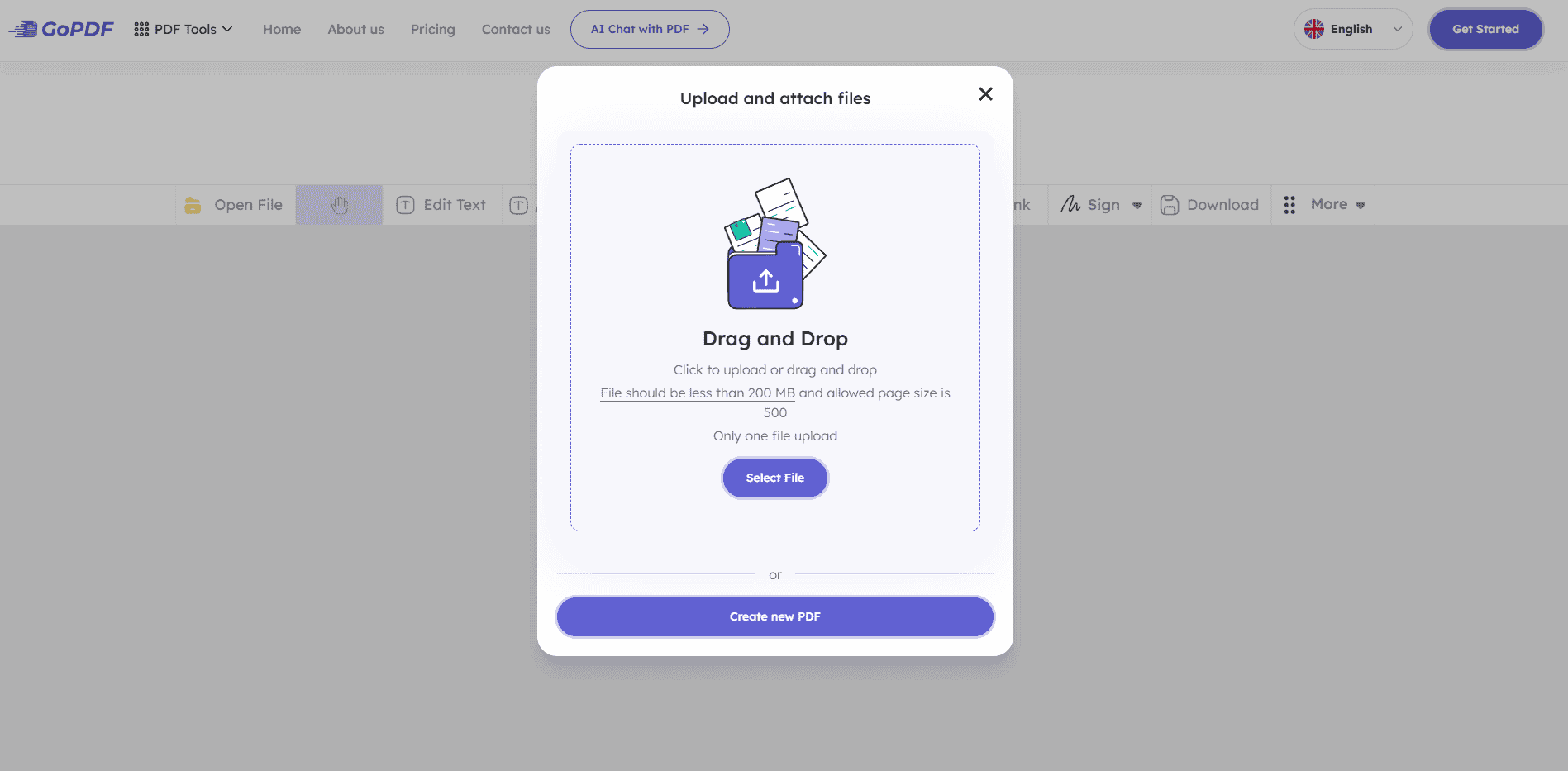
The frequently overlooked detail: read the provider’s data-handling policy before uploading anything borderline. Reputable services delete uploaded files automatically after a set window, often a few hours. That auto-deletion is a meaningful safeguard for semi-sensitive files — but it’s only as trustworthy as the policy is clear, and “we delete your files” with no stated timeframe is a yellow flag.
When Offline Editing Is Worth the Setup
Offline editing earns its install requirement in three situations: confidentiality, heavy or repeated work, and unreliable connectivity. Because the file never leaves your machine, it’s the default for legal, medical, financial, and HR documents where data exposure carries real consequences. It also tends to handle large files, complex layouts, and batch operations more smoothly, since it isn’t constrained by upload limits or a server timeout.
Consider a paralegal preparing fifty case exhibits, each containing personal information. Uploading them one by one to a web tool is both slow and a compliance hazard; a local editor processes the batch with no data ever crossing the network. The same logic applies on a flight with no Wi-Fi, or in a secure facility where uploading documents is outright prohibited.
An expert nuance worth knowing: “offline” is not automatically “secure.” A local editor still writes temporary files and can leave recoverable fragments on disk, and a compromised machine is a compromised file regardless of how it was edited. Offline editing removes the network risk; it does not replace good device security, encryption, and access control.
A Practical Decision Framework
Rather than memorizing tool lists, run the document through three questions in order. The first that returns a clear answer usually settles it.
- Is the document confidential? If yes, edit offline (or with a verified client-side, no-upload tool). Privacy outranks convenience for anything you wouldn’t email to a stranger.
- Is this a quick, one-off edit on a non-sensitive file? If yes, online editing is faster and needs no setup.
- Will you do this often, in bulk, or with large or complex files? If yes, installed software pays back its setup cost quickly.
The mistake this framework prevents is the most common one: reaching for whatever is convenient without asking what’s in the file. People paste sensitive contracts into the first free online editor they find because it’s frictionless, never considering that the friction was the only thing protecting the data.
Applied Workflows: Matching the Method to the Task
Here is how the decision plays out across the situations people actually face.
A quick fix to a non-sensitive file, no software handy. Use a browser-based editor: open it, upload the PDF, change the text or add a note, and download. A tool like GoPDF’s Edit PDF handles this entirely in the browser, which is exactly the case online editing is built for — minor changes when installing software would be overkill. Delete the uploaded copy afterward if the tool allows it.
Editing a confidential document. Keep it local. Use installed desktop software, or a verified client-side editor that processes the file in your browser without uploading it. Confirm the no-upload claim before trusting it — check that the tool works with your connection switched off, which is the simplest proof the file isn’t being transmitted.
Editing a scanned document. A scan is an image with no editable text, online or offline. Either way, run OCR first to create a real text layer, then edit. If you only have the scan and need it text-searchable before editing, OCR PDF is the unavoidable first step regardless of which environment you choose.
Working with no internet. Offline is the only option. This is the clearest case of all — on a plane, in a dead zone, or inside a secure network, an installed editor is the difference between getting the work done and waiting.
Common Mistakes and Misconceptions
- Assuming “online” always means uploaded. Some browser tools now process files entirely client-side. The real question is whether the file is transmitted, not whether it runs in a browser.
- Treating offline as automatically private. Local editing removes network exposure but not the risks of an unencrypted disk, leftover temp files, or a compromised device.
- Uploading sensitive files for convenience. The most frequent error — pasting confidential documents into a random web editor without reading its data policy.
- Believing free means lower quality. Several strong PDF editors are free in both categories; price is a poor proxy for capability here.
- Expecting any editor to fix a scan. Without OCR, neither online nor offline editing can change the text in a scanned page.
Frequently Asked Questions
Is it safe to edit a PDF online?
For non-sensitive documents, generally yes, provided the service has a clear data-handling policy and deletes uploads promptly. For confidential files, online editing means transmitting the document to a server, so an offline or verified no-upload tool is the safer choice.
What’s the main difference between online and offline PDF editing?
Where the file is processed. Online editors upload the file to a remote server and send back the result; offline editors edit the file locally on your device, so it never leaves your computer.
Can I edit a PDF offline for free?
Yes. There are capable free offline editors for Windows, macOS, and Linux, including open-source options. Free does not necessarily mean limited — several handle text edits, annotations, and page management well.
Are browser-based PDF editors always “online”?
No. Some run entirely client-side using technologies like WebAssembly, processing the file in your browser without uploading it. A practical test is whether the tool still works with your internet disconnected.
Which is better for confidential documents?
Offline editing, or a verified client-side tool that doesn’t upload the file. Keeping the document on your own device removes the network as a point of exposure, which matters for legal, medical, financial, and HR files.
Do I need internet to edit a PDF?
Only for online editors. Installed offline software works with no connection at all, which is why it’s the right choice on flights, in dead zones, or inside secure networks that block uploads.
Can online or offline editors change text in a scanned PDF?
Not directly — a scanned PDF is an image. You must run OCR first to create an editable text layer, after which either environment can edit the recognized text.
Is offline editing automatically more secure?
It removes the risk of transmitting your file, but it isn’t automatically secure. An unencrypted drive, recoverable temporary files, or a compromised computer can still expose a locally edited document, so device security still matters.



