
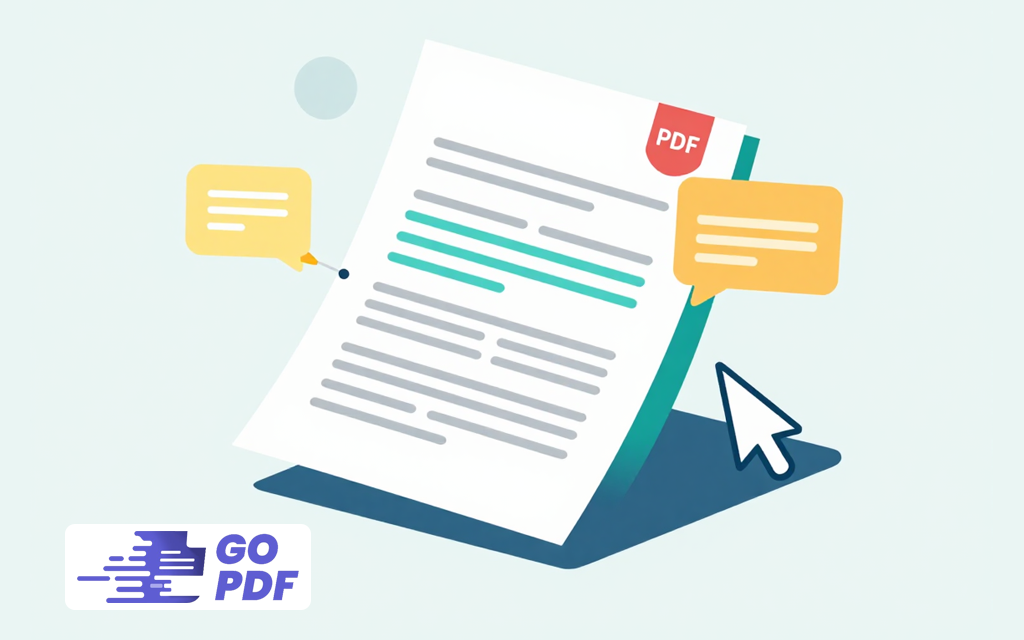
Adding a comment to a PDF means attaching feedback to the document without altering its underlying content a sticky note, a highlight with a remark, a margin reply, or a drawn mark. The original page stays exactly as it was; your comments sit in a separate annotation layer on top of it. That separation is the whole point: a reviewer can mark up a contract heavily, and the author still has the untouched original underneath.
“Comment” is the umbrella term for several annotation types, and knowing which one you mean changes how you add it. A sticky note holds a longer thought anchored to a spot. A text-box comment shows on the page itself. A highlight, underline, or strikethrough carries an optional note. A drawing or stamp marks something visually. Most PDF readers group all of these under a Comment or Annotate menu, which is why people search for “comment” and “annotate” interchangeably even though annotation is the broader idea.
How PDF Comments Work Under the Hood
A PDF comment is stored as an annotation object — metadata layered over the page, not baked into it. This is why you can reposition a sticky note, delete it, or reply to it without ever touching the text beneath. It also explains a behavior that catches people out: comments carry the author’s name and a timestamp, so a marked-up PDF is effectively a small audit trail of who said what and when.
Two practical consequences follow, and competitors rarely spell them out. First, comments are editable and removable by anyone with the right tool, so they are review notes, not security — if you need feedback to be permanent or hidden, comments are the wrong mechanism. Second, “flattening” a PDF merges the annotation layer into the page image, which makes comments permanent and uneditable. That distinction matters: a draft you send for more feedback should keep its live comment layer; a final record you archive should usually be flattened so the notes can’t be quietly changed later.
When People Actually Need to Comment on a PDF
The reason this is one of the most common PDF tasks is that the format is where documents go to be reviewed rather than rewritten. The comment layer lets people collaborate on a file nobody wants to restructure.
- Contract and legal review — a lawyer flags clauses with margin notes while leaving the agreement text intact for the next party.
- Academic feedback — a professor highlights passages in a submitted paper and attaches comments, or a student annotates readings for study.
- Design and proofing — a client circles an element on a layout proof and types what they want changed.
- Team document review — several reviewers add threaded comments to one shared PDF, each note tagged with its author.
The thread running through all of these is accountability without alteration. A teacher’s comment on a thesis has to be visibly the teacher’s, attached to a specific line, and separable from the student’s words — which is exactly what the annotation layer delivers and a plain edit would not.
The Types of PDF Comments (and When to Use Each)
“Add a comment” hides a half-dozen distinct annotation types, and choosing the right one is the difference between feedback that’s understood and feedback that’s ignored. The reference page everyone needs but few competitors provide:
| Comment type | What it does | Best for |
|---|---|---|
| Sticky note | A collapsible icon holding a longer message at a point | Detailed feedback that shouldn’t clutter the page |
| Highlight + note | Marks specific text and attaches a remark | Reacting to an exact passage |
| Text box / callout | Visible text directly on the page | Instructions that must be seen at a glance |
| Strikethrough / underline | Marks text for deletion or attention | Copyediting and proofreading |
| Drawing / freehand | Pen, shapes, and arrows | Pointing at design elements or signing by hand |
| Stamp | A preset mark like “Approved” or “Draft” | Status and sign-off at a glance |
A field-tested rule: use anchored comments (sticky notes, highlight-notes) when feedback refers to something specific, and on-page comments (text boxes, callouts) when the instruction must be impossible to miss. Mixing them sloppily is the main reason review threads get confusing.
Commenting vs Editing vs Filling a Form
People conflate three different actions, and the confusion sends them to the wrong tool. Commenting adds a removable note on top of the page. Editing changes the actual content underneath. Filling a form enters data into fields the document’s author already defined. They look similar on screen and behave nothing alike.
| Action | Changes the original? | Typical use |
|---|---|---|
| Comment / annotate | No — separate layer | Review and feedback |
| Edit | Yes — alters content | Fixing the document itself |
| Fill form | No — enters defined fields | Completing an application |
The tell: if your goal is to say something about the document, you want a comment. If your goal is to change what the document says, you want editing. Reaching for the editor when you only meant to leave a note is how people accidentally rewrite a file they were supposed to review.
Applied Workflows: Adding Comments pdf on Any Device
The method depends entirely on where you’re working. Here’s how the task actually gets done across the platforms people use, including the free built-in options most guides skip and a browser route through a tool like GoPDF when you don’t want to install anything.

On a Mac (free, built in). Open the PDF in Preview, click the markup toolbar icon, and use Notes for sticky comments, Highlight for text, or the text and shape tools for callouts. Comments save into the file and travel with it. No download required — this is the fastest path Apple users routinely overlook.
On Windows (free, built in). Open the PDF in Microsoft Edge, which has a built-in reader: use Add text, Highlight, and Draw from the top bar. Edge is the no-install answer for most Windows users, though its comment set is lighter than a dedicated tool’s.
In the browser (any OS). Upload the file to an online annotator such as GoPDF, add highlights, sticky notes, text boxes, or freehand marks, then download the commented version. This is the route when you’re on a locked-down work machine or a Chromebook where Preview and Edge aren’t options. A practical sequence reviewers use: open the PDF editor in a tool like GoPDF, highlight the passages in question, attach a sticky note to each with the specific change, then save a copy so the original stays clean for the next reviewer.
On iPad and iPhone. Open the PDF in the Files app or Books, tap the markup pencil, and annotate by hand or with the text tool — genuinely the best experience if you have an Apple Pencil for marking up readings.
One caution that applies to every browser route: for confidential documents, weigh that online tools upload your file to a server. For a class reading that’s fine; for a sealed contract, prefer the offline options above. And before sending a final version out, decide whether to keep the live comments or flatten them keep them if more review is coming, flatten them if this is the record of record.
Frequently Asked Questions
How do I add a comment to a PDF?
Open the PDF in a reader with annotation tools Preview on Mac, Edge on Windows, or an online tool like GoPDF — then choose a sticky note, highlight, or text box, click where you want it, and type your comment. Save the file to keep the comment attached.
What’s the difference between commenting and editing a PDF?
Commenting adds a removable note on a separate layer and leaves the original content untouched. Editing changes the actual text or images in the document. Use comments for feedback, editing to fix the content itself.
Can I comment on a PDF for free?
Yes. Preview on Mac and Microsoft Edge on Windows both annotate PDFs at no cost, and several browser-based tools offer free commenting without any installation.
Do PDF comments show who wrote them?
Usually yes. Each comment stores the author’s name and a timestamp, so a reviewed PDF records who added which note and when — useful for collaboration, but worth knowing if you’d rather stay anonymous.
Why can’t I edit or delete comments on a PDF I received?
The file was likely flattened, which merges the comment layer into the page and makes annotations permanent. Once flattened, comments can’t be moved or removed without re-editing the document.
How do I add a sticky note versus a highlight?
A sticky note attaches a collapsible icon holding a longer message at one spot; a highlight marks specific text and can carry an attached remark. Use a sticky note for detailed feedback and a highlight when you’re reacting to an exact passage.
Can I add comments to a PDF on my phone?
Yes. On iPhone or iPad, open the PDF in Files or Books and tap the markup tool; on Android, a free annotation app or a browser-based tool lets you highlight, draw, and add notes.



