
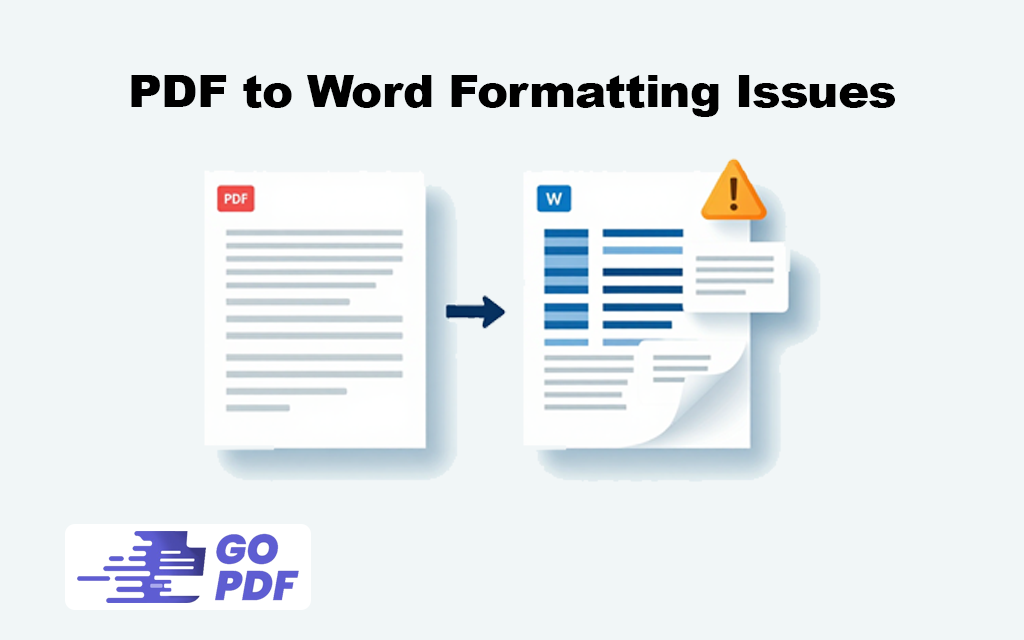
When you convert PDF to Word, you often face severe formatting issues where text shifts, fonts change, tables fall apart, and images land in the wrong places. This happens because PDFs and Word documents are built on completely opposite principles, meaning that a PDF fixes elements by exact coordinates while Word relies on a fluid structure. If you want to know how to fix them, you must understand that these conversion errors are not random glitches. Every broken element, whether it is a scrambled table or a substituted font, traces back to a specific and predictable cause rooted in how the original PDF was created. Identifying these root causes is the ultimate troubleshooting skill because once you name the cause, applying the right formatting fix becomes straightforward.
Formatting issues after converting to Word can be frustrating to fix by hand. Instead of converting back and forth, the ai pdf editor from GoPDF lets you edit text, layout, and images directly in the PDF — skipping conversion headaches entirely and keeping your original formatting intact.
Why PDF to Word Conversion Breaks Formatting
A PDF describes a page as absolute positions: this character at this coordinate, this line drawn here, this image there. It has no concept of “paragraph,” “table,” or “heading” the way Word does visually you see a table, but structurally the PDF may just be text and lines placed near each other. When a converter rebuilds this for Word, it has to guess the logical structure from the visual layout, and every guess is a chance to be wrong.
This explains the specific failures. Tables break because the converter sees lines and text positions and has to infer cell boundaries — get one wrong and the whole grid collapses. Fonts change because the PDF’s font may not be installed in Word, forcing a substitution that shifts spacing. Text boxes appear because some converters wrap every block in a frame to preserve position, which looks fine but is miserable to edit. And the worst case — a scanned PDF — has no text at all, just an image, so without Optical Character Recognition (OCR) the “conversion” produces a Word file containing a picture you can’t edit. The deeper truth competitors skip: conversion quality is decided by the PDF’s internal structure long before you pick a tool. A cleanly authored, tagged PDF converts beautifully; a scanned or badly built one cannot, no matter the converter.
When Formatting Loss Actually Hurts
Not every conversion needs to be perfect, and knowing when precision matters tells you how much effort to spend fixing it.
- Reusing a contract template — you need the clauses and numbering intact to edit and resend, so structure loss is costly.
- Updating a resume — the layout is the whole point; a shifted column or lost spacing ruins it.
- Editing a report with tables — financial or data tables that scramble are worse than useless.
- Extracting text only — if you just need the words to rewrite anyway, formatting loss barely matters.
A practical example that reframes the whole task: someone converts a PDF resume, spends an hour fixing broken text boxes, and never realizes the original Word file still existed in their email. The sharpest “fix” for formatting loss is often to avoid the conversion entirely — recover the source document if it exists, because no converter beats the original. That advice appears on none of the top results, which assume conversion is unavoidable.
The Common Formatting Problems and Their Causes
Each issue has a distinct cause and a distinct remedy. This is the diagnostic map the ranking pages don’t provide.
| Problem | Root cause | The fix |
|---|---|---|
| Tables scrambled or merged | Converter misreads lines and positions as cells | Use a converter with strong table recognition; rebuild complex tables manually |
| Fonts changed or substituted | The PDF’s font isn’t installed in Word | Install the font, or accept a close substitute and fix spacing |
| Text trapped in text boxes | Tool wraps blocks in frames to hold position | Choose a “flowing text” conversion mode; remove frames after |
| Editable text missing (image only) | The PDF is a scan with no text layer | Run OCR before or during conversion |
| Columns and reading order wrong | Untagged PDF gives no logical order | Use a tool that detects columns; reorder in Word |
The pattern worth internalizing: born-digital, well-structured PDFs lose little, while scanned or visually-faked-structure PDFs lose the most. Before blaming the converter, check whether you can select the text in the original PDF — if you can’t, the problem is the source, and OCR is your first move, not a different tool.
Converting vs Extracting vs Recovering the Source
Three different goals hide behind “convert my PDF to Word ” and matching the goal to the method prevents wasted effort.
| Approach | What you get | Best when |
|---|---|---|
| Full conversion | An editable Word file mirroring the layout | You need to keep and edit the formatting |
| Text extraction | The raw text, formatting discarded | You’ll rewrite or restyle anyway |
| Recover the original | The untouched source document | The original Word file still exists somewhere |
The honest hierarchy: recovering the original always wins, full conversion is the realistic default, and plain text extraction is fastest when you don’t care about layout. Choosing extraction when you actually need the layout — or fighting a conversion when the source was a click away — are the two most common wasted efforts.
Applied Workflows: Converting PDF to Word With Formatting Intact
Good results come from preparing the file and picking the right mode, not from hunting for a magic converter. Most of these steps run in the browser through a tool like GoPDF.
Check the source first. Before converting, try selecting text in the PDF. If it highlights normally, it’s born-digital and will convert reasonably well. If it won’t select, it’s a scan and needs OCR — skipping this check is the number-one reason conversions come back as uneditable images.
Convert a born-digital PDF cleanly. Upload the PDF to a converter such as GoPDF, choose Word (DOCX) as the output, and convert. Open the result and inspect the high-risk elements first — tables, headers, and any multi-column sections — since those fail before plain paragraphs do. A real sequence: convert a one-column report, confirm the headings and body text reflow correctly, then fix any single table by hand.
Handle a scanned PDF. Run OCR before or during conversion so the image becomes real text. With a tool like GoPDF you OCR the scan first, verify the recognized text is accurate, then convert to Word — the output is now editable rather than a locked picture. Expect to proofread, because OCR errors carry straight into the Word file.
Fix what survives the conversion. Some cleanup is normal. Replace any substituted fonts with the originals if you have them, convert stray text boxes back to flowing text, and rebuild any table the converter mangled. For documents where layout is critical, converting a born-digital source and fixing two or three elements beats converting a scan and fixing everything.
For confidential files, remember that browser converters upload your document to a server. For sensitive contracts or records, prefer a tool with clear data-handling terms or an offline converter.
Frequently Asked Questions
Why does my formatting break when I convert PDF to Word?
Because a PDF stores content by fixed position with no real paragraphs or tables, while Word needs logical structure. The converter has to guess that structure from the visual layout, and wrong guesses produce broken tables, shifted text, and substituted fonts.
How do I convert a PDF to Word without losing formatting?
Start with a born-digital PDF (one whose text you can select), use a quality converter such as GoPDF set to output DOCX, then check tables and columns first. If the PDF is scanned, run OCR PDF before converting so you get editable text rather than an image.
Why is my converted Word document just an image I can’t edit?
The original PDF was a scan with no text layer, so the converter copied the page as a picture. Run OCR to create real text first, then convert, and the Word file will be editable.
Why did my tables get scrambled in the conversion?
PDFs often have no true table structure — just lines and text placed to look like a grid. The converter infers cell boundaries and can get them wrong. Use a tool with strong table recognition, and rebuild very complex tables manually.
Why did the fonts change after converting?
The PDF used a font that isn’t installed in Word, so Word substituted a similar one, which shifts spacing and line breaks. Installing the original font, or embedding it, keeps the appearance closer to the source.
Why is my text stuck inside text boxes in Word?
Some converters wrap each block in a frame to preserve its exact position. It looks accurate but is hard to edit. Choose a converter mode that produces flowing text, or remove the frames in Word afterward.
What’s the best way to keep layout perfect?
Recover the original Word file if it still exists — no conversion matches the source. If it doesn’t, convert a born-digital PDF and budget time to fix a few elements like tables and fonts.
Can I convert a PDF to Word for free?
Yes. Free browser-based converters handle DOCX output and often include OCR for scans, though free tiers may limit file size or page count. Built-in options like opening a PDF directly in Microsoft Word also work for simpler documents.



