
On a Squarespace site, a “PDF icon” is a clickable visual cue a small document graphic, a thumbnail, or a styled button that tells visitors a link opens or downloads a PDF rather than another web page. The icon itself is cosmetic; the real task is connecting that visual to an uploaded file so a single click delivers the document. Setting this clearly matters because an unmarked link to a 10 MB PDF is a common source of confusion and accidental downloads on mobile.
How Squarespace Handles PDF Files
Squarespace doesn’t store PDFs in a traditional folder you browse. Instead, a file becomes available the moment you attach it to a link — through the link editor’s File tab, a Button block, or a Text link. Once uploaded, Squarespace hosts the file and generates a permanent URL you can reuse across the site. Understanding this is key: you upload the PDF while creating the link, not beforehand in a separate media library.
Methods for Adding a PDF with an Icon
Button block
The simplest approach. Add a Button block, open the link editor, choose File, upload your PDF, and label the button clearly (for example, “Download Brochure (PDF)”). Squarespace buttons don’t carry a file icon by default, so naming the button is what signals the format.
Image linked to the file
This is how you get an actual PDF icon. Add an Image block using a document-style graphic (or a rendered thumbnail of the PDF’s first page), then set the image’s click action to Clickthrough URL → File and upload the PDF. Visitors see a recognizable icon and click straight through to the document.
Inline text link
Highlight text, open the link editor, and attach the file. Adding a small “(PDF)” note or an emoji-style document character keeps the format obvious within body copy.
Preparing the PDF Before Upload
Two preparation steps prevent the most common complaints:
- Compress large files. Squarespace enforces per-file upload limits, and oversized PDFs load slowly on mobile data. Reducing a print-resolution file to a screen-friendly size before uploading improves both deliverability and visitor experience.
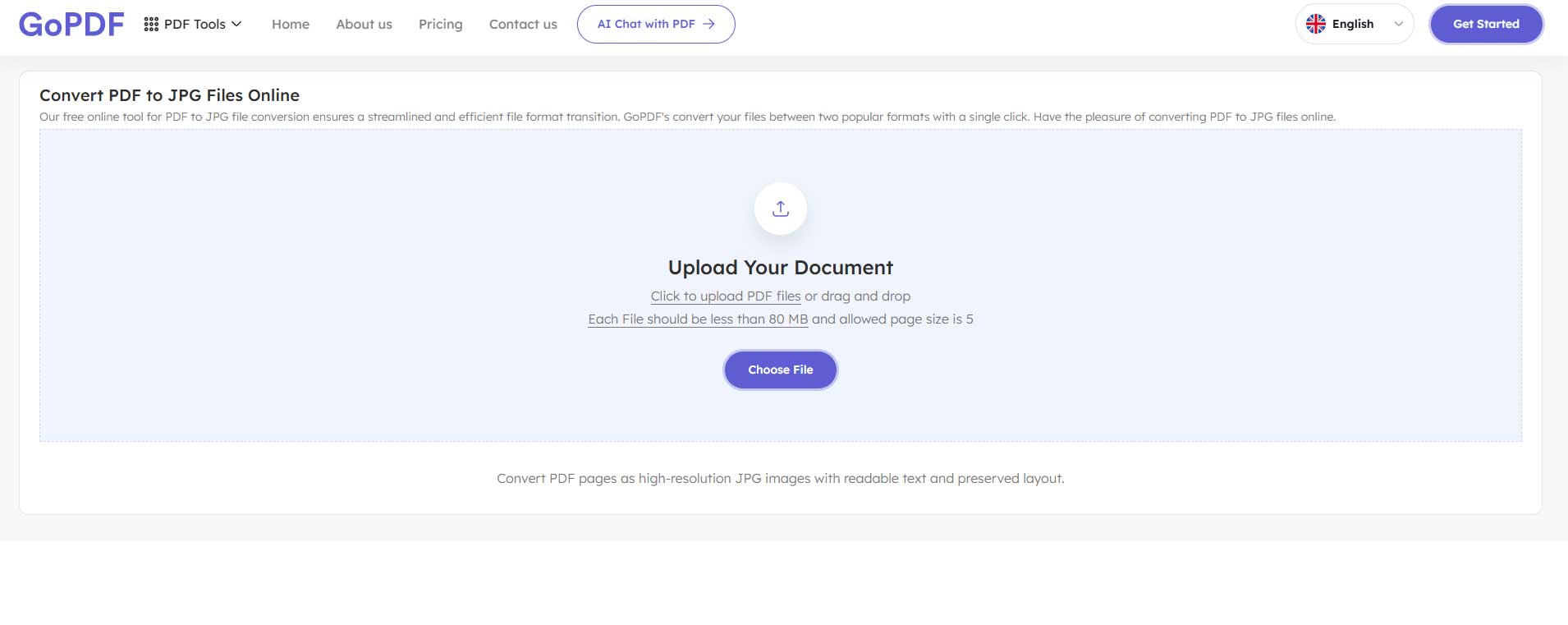
- Create a thumbnail. Convert PDF’s to JPG or PNG gives you a preview image that doubles as the clickable icon far more inviting than a generic document glyph.
Common Mistakes and Edge Cases
- Re-uploading the same file repeatedly: each upload creates a separate hosted copy. To update a PDF site-wide, replace the file within the existing link rather than uploading a new one and editing every link.
- File exceeds the upload limit: if Squarespace rejects the file, it’s almost always size. Compress PDF externally and link to that URL.
- Opens instead of downloads (or vice versa): browser behavior, not Squarespace, decides whether a PDF opens in-tab or downloads. You cannot force one universally; label the link so the outcome isn’t a surprise.
- Broken link after a redesign: deleting the block that hosts the file can break the URL elsewhere. Keep one canonical block per important document.
- Missing format cue on mobile: icons render small on phones. Pair the icon with a short text label so the PDF is recognizable at any screen size.
Frequently Asked Questions
Can visitors preview the PDF without downloading?
Squarespace links open the file in the browser’s native viewer on most desktops, which acts as a preview. Mobile devices more often trigger a download or hand off to a PDF app.
Is there a real file manager in Squarespace?
No central media library lists uploaded PDFs. Files are tied to the links that reference them, so track important documents yourself.
How do I update a PDF that’s already linked?
Open the existing link, remove the old file, and upload the new version. Reusing the same link keeps every reference current without editing each page.
What’s the best icon to use?
A first-page thumbnail communicates content better than a generic document symbol, because visitors can see what they’re about to open.



