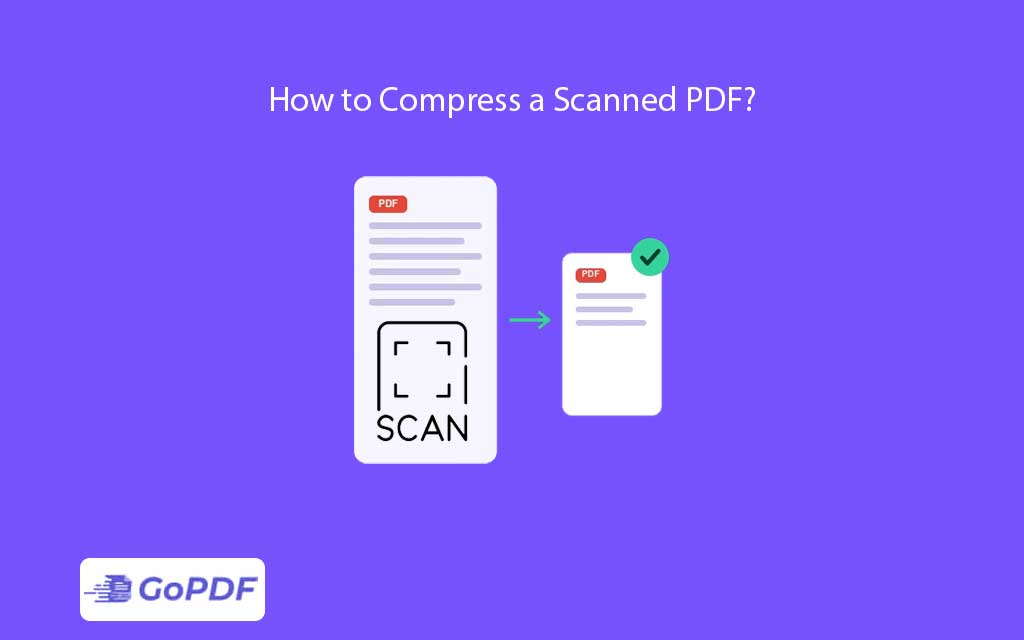
Compressing a PDF means shrinking the file size of a document made entirely of page images the output of a scanner or phone camera — while keeping the text sharp enough to read and the file faithful enough to use. Scanned PDFs are heavy for one reason: every page is a high-resolution photograph, not text, so a ten-page scan can outweigh a hundred-page text document.
Why Scanned PDFs Are So Large in the First Place
A born-digital PDF stores text as compact character codes. A scanned PDF stores each page as a bitmap — millions of pixels, often at 300–600 DPI, frequently in full color even when the original was black ink on white paper. Three factors drive the bloat: resolution (DPI), color depth (color vs. grayscale vs. bitonal), and image codec (how the pixels are encoded). Effective compression targets all three rather than blindly squeezing the whole file.
The Lever Most Guides Ignore: Color Mode
Here is the highest-impact move competitors rarely explain. A page of black text scanned in 24-bit color carries 24 bits per pixel; the same page in bitonal (1-bit black-and-white) carries one. Converting a text-only scan from color to grayscale or bitonal can cut size by 80–95% with no loss of legibility, because the color data was never carrying information — it was carrying scanner noise. Reach for color reduction before you ever touch resolution.
Resolution: How Low Is Safe
DPI is a quality dial, not an on/off switch. For on-screen reading, 150 DPI is usually indistinguishable from 300. For documents that will be printed or that contain fine print and signatures, hold 300 DPI. Dropping below 150 is where text starts to soften visibly. The skill is matching DPI to the document’s destiny — archive-and-email scans tolerate aggressive downsampling; legal exhibits do not.
Why You Should OCR Before You Compress
Counter-intuitive but important: running OCR pdf before compression can make the file both smaller and more useful. OCR adds a searchable text layer, and some compression engines can then store the recognized text efficiently while heavily compressing the background image — a technique called mixed raster content (MRC). You end up with a searchable, selectable, dramatically smaller PDF instead of a smaller-but-still-dumb picture.
Use Cases and the Right Aggressiveness for Each
- Emailing a scanned contract — bitonal + 150 DPI; legibility is all that matters.
- Uploading to a portal with a size cap — compress to just under the limit, not to the floor, to preserve quality headroom.
- Long-term archive — OCR first, then moderate compression at 300 DPI so the document stays searchable and print-ready.
- Photo-heavy scans — keep grayscale or color; bitonal would destroy the images.
Applied Workflows: Shrinking a Scan the Smart Way
Workflow 1 — Text-only document, maximum shrink
- Inspect the scan: is it color carrying only black text? If so, color reduction is your biggest win.
- Convert to grayscale or bitonal, then downsample to 150 DPI.
- In a browser-based tool such as GoPDF, you would upload the scan, apply OCR to add a text layer, then run compression and pick a quality preset that matches the use.
- Open the result and read the smallest text to confirm it survived.
Workflow 2 — Hitting a hard upload limit
- Note the cap (e.g., 5 MB).
- Compress in one step; if still over, reduce DPI before reducing further on color, since DPI loss is more forgiving than artifacting.
- Stop as soon as you clear the limit — over-compressing past the requirement only costs quality.
Workflow 3 — Searchable archive copy
- OCR the full document first.
- Apply moderate compression at 300 DPI so it remains print-ready.
- Verify you can search for a word inside the file before archiving.
FAQ
Why is my scanned PDF still huge after compression?
It is probably still in full color. Convert text-only scans to grayscale or bitonal — that single change usually beats any resolution tweak.
Does compressing a scan remove the searchable text?
If the file was OCR’d, good compression keeps the text layer. If you compress a raw image scan, there was never any text to lose — OCR first to gain it.
What DPI should I compress to?
150 DPI for on-screen reading and email; 300 DPI for anything that will be printed or contains fine detail. Avoid going below 150.