
A background image is any graphic placed behind the text and other content of a PDF page, sitting on its own visual layer so it appears watermark-style beneath everything else. People add backgrounds for branding (a faint company logo), legal marking (a “DRAFT” or “CONFIDENTIAL” wash), aesthetic framing (textured paper, certificates), or to recreate letterhead inside a digital document. Because the PDF format flattens layout into fixed pages, how you add a background depends heavily on whether the file is still editable or already finalized.
How Backgrounds Actually Work in a PDF
A PDF is built from stacked content streams. Anything added later is drawn on top of the existing stream unless the editor explicitly pushes it underneath. Background tools solve this by inserting the image at the bottom of the z-order and applying an opacity value so foreground text stays readable. This differs from a true page background in a word processor: in a PDF the image is baked into each page you target, so adding it to a 40-page document means the editor repeats or scales the graphic across every selected page.
Two properties matter most. Opacity controls how much the image shows through — 10–25% is typical for logos behind text. Scale and position decide whether the image tiles, fits the page, or anchors to a corner. Getting these wrong is the single most common cause of unreadable output.
Methods for Adding a Background
Add it before the PDF exists
The cleanest result almost always comes from designing the background in the source application — Word, Google Docs, InDesign, Canva, or PowerPoint — then exporting to PDF. Word’s Design → Watermark → Custom → Picture and PowerPoint’s slide-master background both embed the image as a genuine page layer, which survives export better than a post-hoc overlay.
Add it to a finished PDF
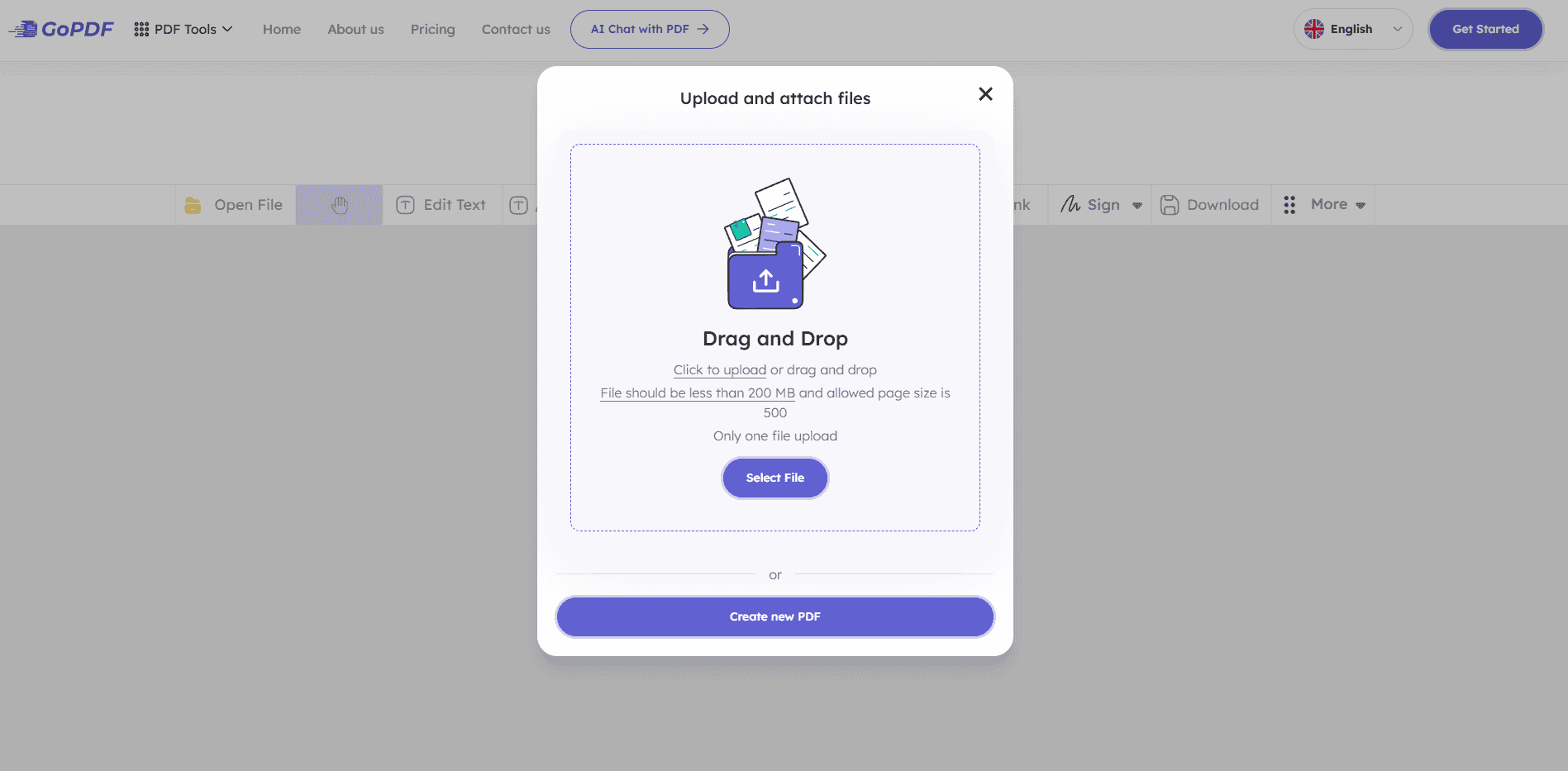
When the source file is gone, you edit the PDF directly. Desktop tools like Adobe Acrobat (Edit → Watermark / Background) and browser-based PDF editor let you insert an image, set opacity, choose pages, and lock it behind the text. Most keep the original text selectable rather than rasterizing the whole page.
Programmatic insertion
For repeatable, high-volume work — invoices, certificates, statements — libraries such as pdf-lib (JavaScript), PyPDF/ReportLab (Python), or iText (Java) draw an image onto each page at a fixed coordinate. This is the right approach when backgrounds must be applied to thousands of generated documents on a server.
Choosing the Right Image
| Use case | Recommended format | Why |
|---|---|---|
| Logo / line art behind text | PNG with transparency | Crisp edges; transparent areas let page color show |
| Photographic texture / full bleed | JPG | Smaller file size for continuous-tone images |
| Scalable brand mark | SVG (if supported) | Stays sharp at any page size |
Match resolution to print intent: 150 DPI is fine on screen, but anything destined for print should be 300 DPI at final size, or the background will look soft next to crisp text.
A Practical Workflow
- Prepare the image: trim whitespace, set transparency, and size it to roughly the page proportions (8.5×11 in / A4).
- Open the PDF in an editor with a dedicated background or watermark function and insert the image.
- Set opacity to 15–20% for behind-text logos; reserve full opacity for decorative borders that avoid the text area.
- Choose the page range — cover pages and body pages often need different treatment.
- Preview at 100% zoom, not fit-to-window; readability problems hide at small zoom levels.
- Export a copy and keep the original untouched.
Common Mistakes and Edge Cases
- Image on top instead of behind: if your graphic covers the text, you used an “insert image” tool rather than a “background/watermark” tool. Only the latter controls z-order.
- Opacity left at 100%: the most frequent reason a document becomes unreadable. Always reduce opacity for anything sitting under text.
- Mixed page sizes: one background scaled across pages of different dimensions will crop or stretch. Apply per-size if the document mixes letter and legal pages.
- Scanned PDFs: a scanned page is already a flat image, so a new background may hide underneath the scan. Place such marks on top with reduced opacity instead.
- Accessibility: a busy background lowers text contrast and can fail WCAG ratios. Keep backgrounds faint in documents that must remain accessible.
- File size: embedding a high-resolution photo on every page can balloon the PDF. Compress the image first if size matters.
Frequently Asked Questions
Can I add a background to only some pages?
Yes. Any tool with a page-range option lets you target specific pages a common pattern is a decorative cover background with plain interior pages.
Will the text stay selectable?
If you use a background/watermark function, the original text layer is untouched and stays selectable and searchable. Flattening the page, however, converts everything to a single image and removes selectable text.
How do I remove a background later?
If it was added as a watermark/background object, most editors offer a matching “remove background” command. If the page was flattened, the background is permanently merged and can only be covered, not cleanly removed.
Why does my background look pixelated?
The source image resolution is too low for the page size. Replace it with a higher-resolution or vector version rather than enlarging the existing image.



