
This is one of those requests where the most useful answer starts by gently correcting the question. A PDF doesn’t contain page breaks. A page break is a word-processor concept — an invisible marker that tells the software “start a new page here,” after which text reflows around it. By the time a document is a PDF, that has already happened and been thrown away. What you’re left with is a stack of fixed, independent pages. There’s no break to delete, because there’s no flowing text for a break to interrupt.
So when someone wants to “remove page breaks from a PDF,” they almost always mean one of a few different things. Naming the real goal is what makes it solvable.
Why the page break is already gone
In a word processor, a document is one continuous stream of content, and breaks decide where pages start. Exporting to PDF “bakes” that pagination: each page becomes a fixed canvas of a set size with content placed at fixed coordinates. The pages no longer know about each other, and nothing reflows. That permanence is the whole point of PDF — it guarantees the layout looks identical everywhere — but it’s also why “just delete the break” isn’t an operation that exists.
If you can still edit where pages split and have text reflow, you’re not really working with a PDF — you’re working with its source document. That distinction decides your entire approach.
What you probably actually want
| What you said | What you likely mean | Where to fix it |
|---|---|---|
| “Remove the page break” | Make the pages read as one continuous flow | Source document, then re-export |
| “Get rid of the gap between pages” | Change how the reader displays pages | Reader view setting — no editing |
| “Combine two pages into one” | Merge page content onto a single page | PDF page tools |
| “It breaks awkwardly when printing” | Fix pagination for print | Source document or print scaling |
If you want continuous reading (no editing needed)
Very often the complaint is purely visual: the reader shows each page as a separate sheet with a gray gap between them, and it feels chopped up. That’s a view setting, not a document property. Switching the reader to continuous / single-page scrolling makes the document flow as one long strip with no perceived breaks — and changes nothing in the file. Before doing any editing, check this first; it resolves a surprising share of these requests in one click.
If the breaks came from a Word (or similar) document
This is the cleanest real fix and the one to reach for whenever you still have the original. The page break lives in the source file, not the PDF. So:
- Open the original document in its word processor.
- Turn on formatting marks to see the actual page-break and section-break characters.
- Delete the unwanted breaks; the text reflows the way you want.
- Re-export to PDF.
Trying to do this inside the PDF is doing it the hard way — you’d be manually re-placing fixed content rather than letting text reflow. If the source exists, always go back to it.
If you only have the PDF
Without the source, you can’t reflow, but you can still reshape the document at the page level. Depending on the real goal:
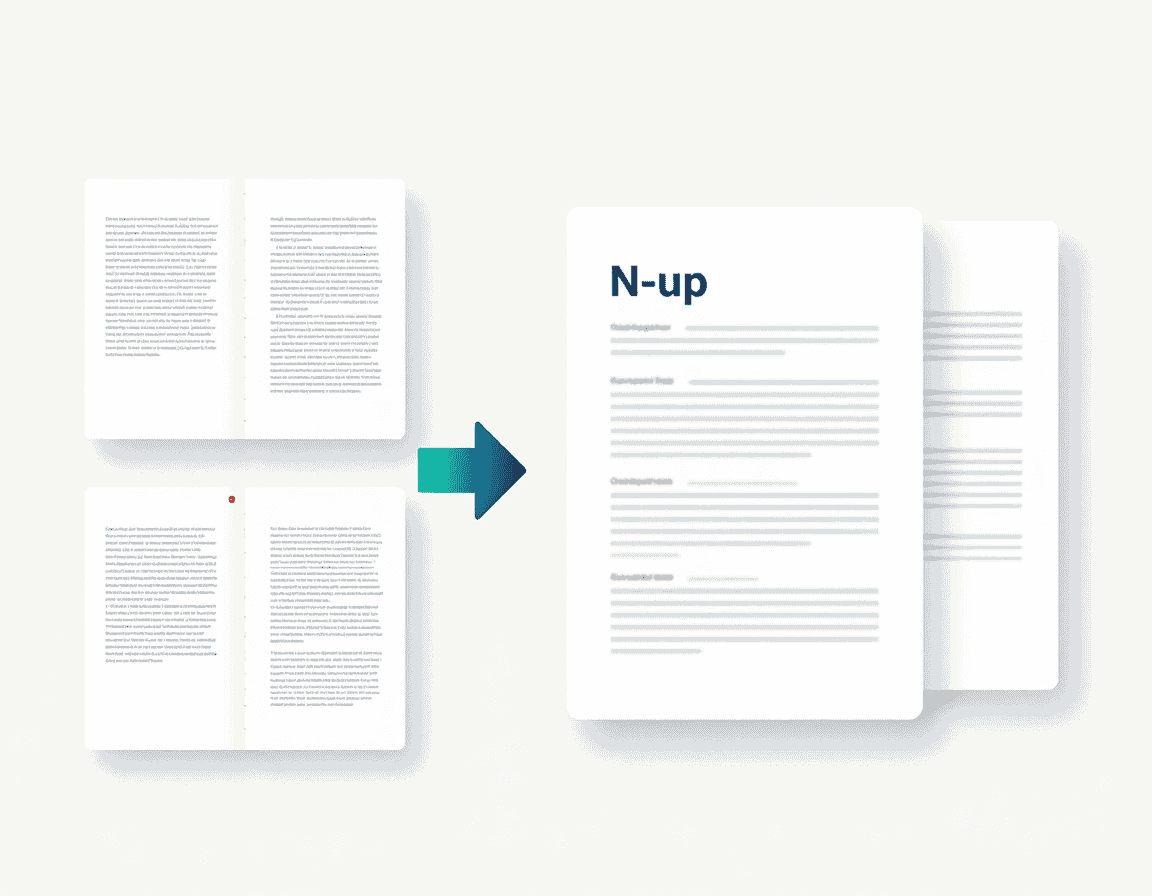
- Merge content from two pages onto one using page tools that place multiple pages onto a single larger sheet (an “N-up” or combine operation). The content doesn’t reflow — it’s repositioned — but it removes the physical break between the two.
- Resize the page taller so content that spanned two pages can be repositioned onto one long page. This is fiddly and best for short documents.
- Convert the PDF back to an editable format (such as Word), reflow the text there, and re-export. This is the closest you’ll get to “removing” a break when there’s no source file — with the caveat that conversion is never perfect on complex layouts and you should expect to clean up formatting.
Converting to an editable format is the underrated route here: it turns the impossible (“delete a break in a fixed file”) into the possible (“delete a break in a flowing file”), at the cost of a formatting pass afterward.
The printing case
If the real annoyance is that a table or paragraph splits awkwardly across two printed pages, the durable fix is in the source document — keep-with-next settings, adjusting where content sits, or changing page size before exporting. If you only have the PDF, scaling options in the print dialog (“Fit,” “multiple pages per sheet”) can sometimes rearrange how content lands on paper, though they won’t change the underlying pagination.
Common mistakes and misconceptions
- Believing the PDF stores a break. It doesn’t. The break was resolved into fixed pages at export.
- Editing the PDF when the source exists. Far more effort for a worse result. Fix the source and re-export.
- Confusing the reader’s page gap with a document break. Continuous scrolling view removes the visual gap without touching the file.
- Expecting conversion to be lossless. PDF to Word reflows text but can disturb complex layouts; budget time to tidy up.
- Merging pages and expecting reflow. N-up and combine operations reposition fixed content; they don’t rewrap text.
Frequently asked questions
Can I delete a page break inside a PDF?
Not directly — PDFs don’t store page breaks. You either fix it in the source document and re-export, change the reader’s view, or restructure pages with page tools.
How do I make a PDF scroll continuously without gaps?
Switch your PDF reader to continuous or single-page scrolling. It’s a view setting and changes nothing in the file.
I don’t have the original file — what now?
Convert the PDF to an editable format like Word, remove the breaks where text reflows, and export back to PDF. Expect to fix some formatting afterward.
Why does my content split across pages when I print?
Pagination is fixed in the PDF. For a clean fix, adjust the source document’s layout; otherwise, print scaling options can rearrange how pages land on paper.
Is merging two pages the same as removing a break?
It removes the physical separation by repositioning content onto one page, but it doesn’t reflow text the way deleting a break in a word processor would.



