
If a PDF won’t let you edit it, the cause is almost always one of these things, the document being password-protected, a scanned image, corrupted, or is flattened. Not to be able to edit a PDF isn’t a single problem, it’s a symptom, and the fix depends entirely on which of the items mentioned above is true. The fastest way out is to diagnose the cause before reaching out for a tool.
The reason that these elements are not easily recognizable is that all of them look identical on screen, you click the text but nothing happens. A scanned contract, a locked bank statement, and a signed agreement all refuse to budge in exactly the same way, yet each needs a completely different solution. Most of the guides list generic fixes without helping you tell the cases apart, which is the actual skill here.
What’s Really Stopping the Edit
For editing a PDF two requirements must be met. First, the document has to contain editable content, and second, your software has to be allowed and able to change it. Every “can’t edit” error is a failure of one of those conditions, and naming the exact failure is what turns a frustrating dead end into a two-minute fix.
The deepest distinction and the one no top result states plainly is between content that doesn’t exist as text and content, you’re not permitted to change. A scanned PDF has no text objects at all; there is literally nothing to edit until Optical Character Recognition (OCR) creates a text layer. A permission protected PDF has perfectly editable text, but an owner password (separate from the open password) tells readers to forbid changes.
These two feel the same but sit at opposite ends, one is a missing-content problem, the other is a permission problem. Then there’s a third category, the document is editable and unrestricted, but you’ve opened it in a reader like a browser or basic PDF viewer that was never built to edit. Sorting your situation into the right bucket is 90% of solving it.
The Situations Where People Hit This Wall
The “can’t edit” complaint clusters around a handful of very specific real-world moments, and recognizing yours points straight to the cause.
- You scanned a paper document — you photographed or scanned a form, and now the “text” is just an image you can’t click into.
- You received an official file — a bank, government, or HR document arrives locked or restricted so it can’t be altered.
- You already signed it — a contract you e-signed now refuses edits, because signing locked the content to preserve its integrity.
- You’re using the wrong app — the PDF opened in Chrome, Edge, or a basic reader that can annotate but not truly edit.
A concrete example that maps directly to the top search results: someone fills and signs a PDF form, saves it, then needs to correct one field — and discovers it’s frozen. That’s not a bug. Signing intentionally locks the form so the signed version can’t be quietly changed; the fix is to revert or re-create, not to fight the lock. The generic pages list “it’s signed” as a cause but rarely explain that this is the format working as designed.
The Five Causes and Their Specific Fixes
Each cause has a distinct signature and a distinct solution. This is the diagnostic table the ranking pages don’t provide.
| Cause | How to recognize it | The fix |
|---|---|---|
| Scanned image PDF | Text can’t be selected; it highlights as a block or not at all | Run OCR to create an editable text layer |
| Permission-restricted | A “Secured” or padlock note appears; editing tools are greyed out | Remove the owner-password restrictions (if you have the right) |
| Password-protected (open) | The file demands a password just to open | Enter the password, then unlock to edit |
| Signed pdf or flattened | It edited fine until it was signed/saved as final | Revert to an unsigned copy or re-create the document |
| Wrong software | You can view and comment but not change text | Open it in an actual PDF editor, not a reader |
The non-obvious nuance: there are two kinds of PDF password. An open (user) password stops the file from opening at all; a permissions (owner) password lets anyone open it but blocks editing, printing, or copying. People conflate them and try to “remove the password” on a file that opens fine — when what they actually need is to lift the permissions restriction. Knowing which lock you’re facing is the whole game.
Editing vs Annotating vs Unlocking
Three actions get mistaken for “editing,” and the confusion sends people to tools that can’t solve their problem.
| Action | What it does | Solves which cause |
|---|---|---|
| True editing | Changes the actual text and objects | Needs real text and permission |
| Annotating | Adds comments on top without changing content | A workaround when you can’t edit but can mark up |
| Unlocking | Removes passwords or permission restrictions | The restriction and password causes |
A practical realization that helps in a pinch: if you can’t edit a restricted file you received but only need to add information — a date, initials, a note — annotation often gets the job done without unlocking anything, because comments live on a separate layer the restriction doesn’t touch. It’s not a true edit, but for many real needs it’s enough.
Applied Workflows: Diagnosing and Fixing an Uneditable PDF
Work the problem in order: identify the cause, then apply the matching fix. Most of these run in the browser through a tool like GoPDF without installing anything.
Step one — diagnose in ten seconds. Try to select a line of text. If it highlights letter by letter, you have real text (so the block is permission, software, or signing). If it won’t select or highlights as one image, it’s a scan. Check the title bar or document properties for “Secured” or a padlock to spot a permission lock. This quick test decides everything that follows.
Fixing a scanned PDF. Run OCR to convert the page images into editable text, then edit normally. In a browser tool such as GoPDF you upload the scan, apply OCR, and the recognized text becomes selectable and changeable. A real sequence: scan a printed form, OCR it, confirm the recognized words are accurate, then correct the fields.
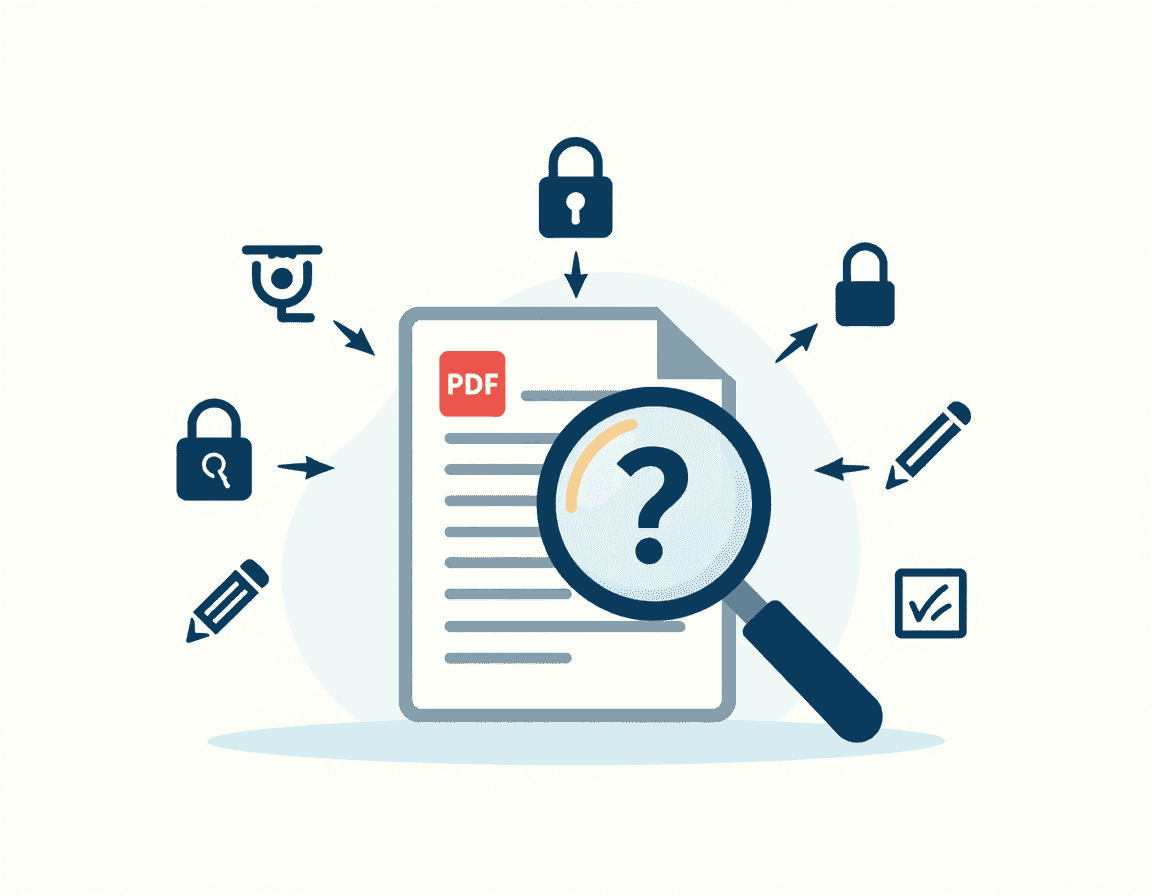
Fixing a restricted or password-locked file. If the document only blocks editing (a permissions lock) and you have the right to change it, remove the restriction so the editing tools wake up. If it demands a password to open, enter it first, then unlock. A tool like GoPDF can remove a known password or owner restriction from a file you’re authorized to edit — but only do this on documents you legitimately own, since unlocking someone else’s protected file may be against their intent or the law.
Fixing the wrong-software problem. If the file is fine but your viewer can’t edit, open it in an actual editor instead of a browser or basic reader. The PDF was never locked — the tool just couldn’t do the job.
When it’s signed. Don’t try to force an edit. Revert to the pre-signature draft if you have it, make the change there, and re-sign; otherwise re-create the document. Fighting a signature lock corrupts the file’s integrity, which is exactly what the signature exists to protect.
Frequently Asked Questions
Why can’t I edit a PDF?
Usually one of five reasons: it’s a scanned image with no real text, it’s password- or permission-protected, it’s been signed or flattened, you opened it in a viewer that can’t edit, or its content is locked. Identify which applies, because each has a different fix.
Why can’t I select the text in my PDF?
The PDF is almost certainly a scanned image, so the “text” is just a picture with nothing to select. Run OCR PDF to create a real text layer, after which the words become selectable and editable.
How do I edit a locked or secured PDF?
If editing is blocked by a permissions (owner) password and you have the right to change the file, remove that restriction with a tool like GoPDF, then edit normally. If it also requires a password to open, enter that first.
Why can’t I edit a PDF after signing it?
Signing locks the document to preserve its integrity, so the signed version can’t be altered. To make changes, revert to an unsigned copy and edit that, or re-create the document and sign again.
What’s the difference between a locked and a restricted PDF?
A locked (open-password) PDF won’t open without a password. A restricted (permissions-password) PDF opens freely but blocks editing, printing, or copying. They need different fixes — entering a password versus removing a restriction.
Can I edit a PDF without Adobe?
Yes. Browser-based editors such as GoPDF and other PDF edit text, run OCR, and remove restrictions without Adobe Acrobat. Built-in options like Preview on Mac also handle lighter edits.
I can only comment on the PDF, not edit it — why?
You’re likely in a reader or a restricted file that permits annotation but not content changes. If you only need to add a note or a date, annotating may be enough; for true text changes you’ll need an editor and, if restricted, to lift the permission.
Is it legal to unlock a PDF I can’t edit?
Removing protection is appropriate for documents you own or are authorized to change. Unlocking someone else’s protected file without permission may violate their intent or applicable law, so only unlock files you have the right to edit.



