
Bolding text in a PDF means changing existing characters to a heavier weight, or adding new bold text, without rebuilding the document. It sounds trivial — you bold text in Word in one click — but a PDF is a fixed-layout file, not an editable word processor document, so the way bold works is fundamentally different. There is no simple “bold button” applied to a finished PDF in the way there is in Word, and understanding why is the difference between getting clean results and getting a mess.
The short version: bolding text in a PDF is really a text-editing operation, and whether it works cleanly depends on how the bold is applied — by swapping to a true bold font, by editing existing text, or by overlaying new text. Each path behaves differently, and the wrong one produces the fuzzy, fake-bold artifacts people complain about.
Bolding text is just one small tweak — if you need to go further and adjust fonts, resize elements, or rearrange content, the ai pdf editor from GoPDF makes it easy. It handles text formatting, layout changes, and edits all in one place, so your document looks polished and professional.
Why Bolding a PDF Isn’t as Simple as It Looks
In a PDF, “bold” is not a toggle on a character — it’s usually a separate font. When a document uses Arial Bold, that’s a distinct embedded font from Arial Regular, with its own glyph shapes. So making text bold properly means switching it to the bold variant of its typeface, which only works if that bold font is available or embedded. This is the mechanism the ranking pages gloss over, and it explains almost every problem people hit.
When the real bold font isn’t present, editors fall back to synthetic (faux) bold — algorithmically thickening the existing glyphs by stroking their outlines. It looks acceptable on screen but often prints slightly blurry and can break text reflow. There’s also the question of whether the PDF contains real, editable text at all: a scanned PDF is an image, so there’s nothing to bold until Optical Character Recognition (OCR) turns the picture into actual characters. Recognizing which situation you’re in — true font available, faux bold only, or scanned image — tells you immediately whether the job will be clean or compromised.
When People Actually Need to Bold PDF Text
The need almost always arrives after the document is final, which is exactly when editing is hardest. The common triggers:
- Emphasizing a clause or figure — making a deadline, total, or warning stand out in a contract or invoice you received as a PDF.
- Fixing a formatting slip — a heading that lost its bold during a PDF to word export and needs restoring.
- Filling and styling forms — making entered text bold in a fillable PDF field for legibility.
- Accessibility and readability — strengthening key terms in a document meant for on-screen reading.
A revealing real-world case: someone exports a resume from Word to PDF, then notices a job title that should be bold came through as regular weight. Re-opening Word and re-exporting is the clean fix — but if the original file is gone, they’re stuck editing the PDF directly, which is when the font-availability problem bites. The practical lesson the top pages miss: whenever possible, bold at the source and re-export, because editing bold into a finished PDF is always the harder road.
The Three Ways Bold Gets Applied (and Their Trade-offs)
“Bold the text” resolves into three distinct techniques, and each leaves a different fingerprint on the file.
| Method | How it works | Trade-off |
|---|---|---|
| True font swap | Replaces text with the bold variant of its typeface | Cleanest result; needs the bold font available or embedded |
| Synthetic (faux) bold | Algorithmically thickens existing glyphs | Works anywhere; can look fuzzy and may print poorly |
| Overlay new text | Adds a bold text box on top of the page | Good for adding emphasis; doesn’t change the underlying text |
The decision rule worth internalizing: if you’re editing existing words, aim for a true font swap and only accept faux bold when the font isn’t available. If you’re adding new emphasis — a stamp-like “URGENT” or a note — an overlay text box is cleaner and safer, because it never risks disturbing the original layout. Mixing the two is how documents end up with mismatched weights on the same line.
Editing Text vs Adding Text vs Fixing the Source
People reach for the wrong tool because three different jobs all feel like “bolding.” Editing changes characters already in the PDF. Adding places new text on top. Fixing the source means going back to the original file. Each suits a different situation.
| Approach | Best when | Result quality |
|---|---|---|
| Edit existing PDF text | You only have the PDF and must change its words | Good if the bold font is available; faux bold otherwise |
| Add a bold text overlay | You’re emphasizing or annotating, not rewriting | Clean and non-destructive |
| Re-export from the source | You still have the original Word or Docs file | Perfect — bold is native there |
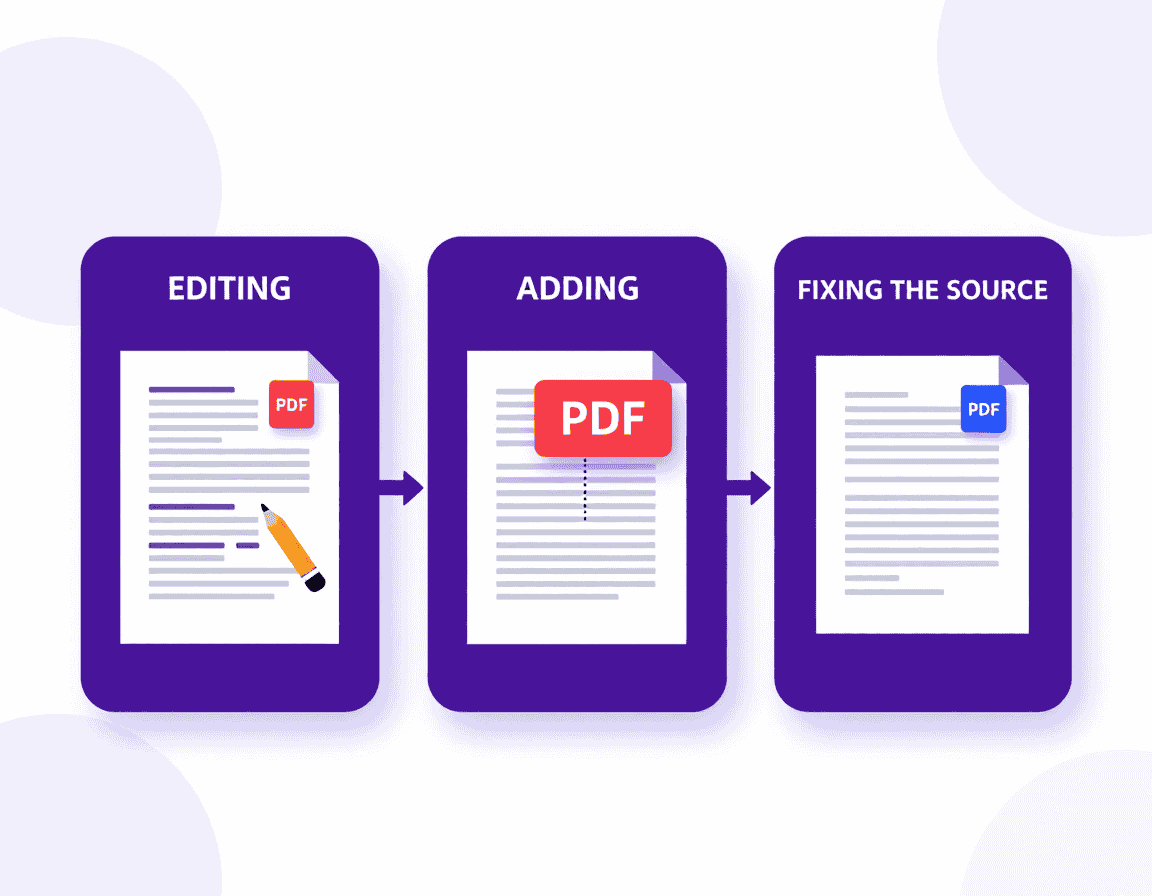
The honest hierarchy: re-exporting from the source beats every in-PDF method, an overlay beats faux bold for added emphasis, and faux bold is the last resort. Most guides jump straight to “use an editor” without telling you the cleanest fix is often to not edit the PDF at all.
Applied Workflows: Bolding Text in a PDF
Which path you take depends on what you have and what you’re trying to do. Here are the real sequences, including the browser route through a tool like GoPDF when you don’t have desktop software.
Bolding existing text in a born-digital PDF. Open the file in a PDF editor, select the text, and switch its font to the bold variant of the same typeface (for example, Arial to Arial Bold). In a browser editor such as GoPDF you click into the text, select it, and apply bold from the formatting controls. If the editor only thickens the existing glyphs rather than swapping the font, you’re getting faux bold — fine for screen, less ideal for print.
Adding new bold text or emphasis. When you want to flag something rather than rewrite it, add a text box and set it to a bold font, then position it on the page. A practical example: to stress a payment deadline on an invoice, open it in a tool like GoPDF, drop a bold text box reading “Due March 1” beside the total, and save — the original text stays untouched.
Handling a scanned PDF. If the document is a scan, there’s no text to bold yet. Run OCR PDF first to create a real text layer, then edit as you would a born-digital PDF. The sequence is: OCR the scan, confirm the recognized text is accurate, then select and bold the target words.
The cleanest fix when you have the original. If the Word or Google Docs source still exists, bold the text there and re-export to PDF — native bold, perfect rendering, no faux-bold risk. For confidential documents edited online, remember that browser tools upload the file to a server, so weigh that before using one on sensitive material.
Frequently Asked Questions
How do I bold text in a PDF?
Open the PDF in an editor such as GoPDF or Adobe Acrobat, select the text, and apply bold — ideally by switching to the bold version of its font. For added emphasis rather than editing, insert a bold text box on top of the page instead.
Why does bold text in my PDF look fuzzy?
The editor likely applied synthetic (faux) bold, which thickens the existing glyph outlines because the true bold font isn’t available. Faux bold can look blurry, especially in print. Switching to the actual bold font of the typeface fixes it.
Can I bold text in a scanned PDF?
Not directly, because a scanned PDF is an image with no editable text. Run OCR first to create a real text layer, then you can select and bold the text like any born-digital PDF.
Is there a bold button in a PDF like in Word?
Not in the same way. A PDF is fixed-layout, so bolding requires a text editor and usually means swapping to a bold font rather than toggling a single attribute. The closest one-click experience is editing in a dedicated PDF editor.
What’s the cleanest way to make PDF text bold?
If you still have the original Word or Google Docs file, bold the text there and re-export to PDF — bold is native in those programs and renders perfectly. Editing the finished PDF is the fallback when the source is gone.
Can I bold text for free?
Yes. Browser-based editors offer free text editing that includes bold, and on Mac, Preview can add bold text boxes. Free tools may apply faux bold if the true bold font isn’t embedded.
Will bolding text change my PDF’s layout?
It can. Bold characters are often wider than regular ones, so editing existing text to bold may shift spacing or push words to the next line. Adding a separate bold text overlay avoids disturbing the original layout.



